
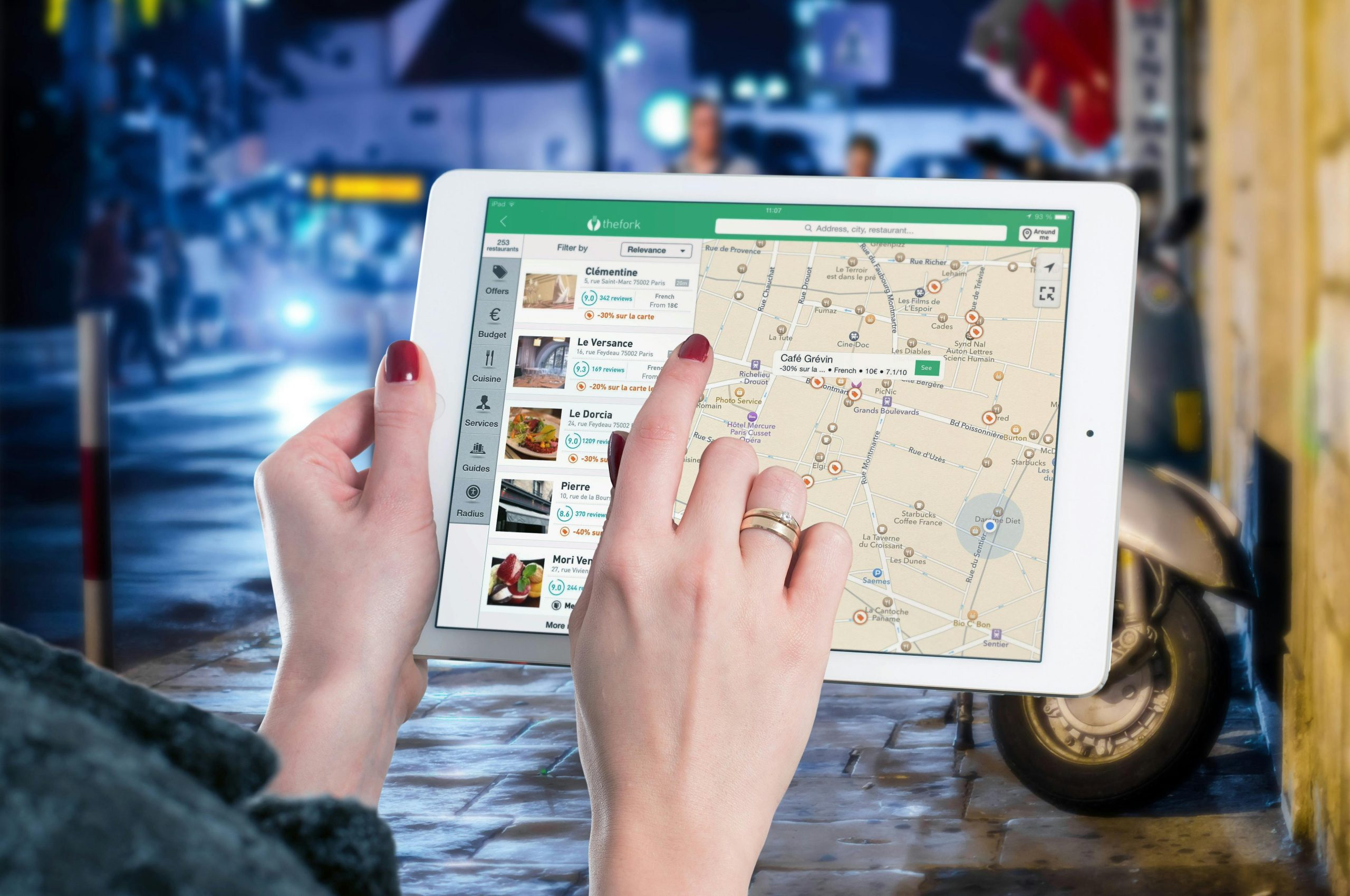
Location-based apps are deeply integrated into everyday life. From social media check-ins to gaming, dating apps, and navigation services, GPS tracking plays a major role in how applications function. While Android users have long had multiple ways to spoof location, iOS has traditionally made it much harder to modify GPS data.
If you want to set a virtual location on your iPhone or iPad, one of the most reliable solutions is using Dr.Fone – Virtual Location. This tool allows you to change your GPS location in different ways, whether you want to teleport instantly, simulate travel between two places, or create a custom route with multiple stops.
This detailed guide explains how to fake GPS location on iOS step by step using a computer and the virtual location feature.
What You Need Before You Start
Before changing your GPS location, make sure you have:
- A Windows PC or macOS computer.
- Dr.Fone – Virtual Location software installed on your computer.
- The companion Dr.Fone app installed on your iOS device.
- A USB cable to connect your device to the computer.
The desktop software handles the location simulation, while the iOS app syncs the modified GPS data to your device.
Three Ways to Change GPS Location on iOS
Dr.Fone’s Virtual Location feature supports three main methods:
- Instant Teleport Mode
- Simulated Movement Between Two Points
- Multi-Stop Route Simulation
Each method serves a different purpose depending on how realistic you want your virtual movement to appear.
Method 1: Instantly Teleport to Any Location
If you simply want your GPS to show a different city or country without movement simulation, Teleport Mode is the fastest option.
Step 1: Launch the Software
Open Dr.Fone on your computer and select “Virtual Location.” Connect your iPhone or iPad using a USB cable.
When prompted, click “Get Started.”
Step 2: Verify Current Location
The software will display your current GPS position on a map. If it does not load correctly, click the “Center On” button in the lower-right corner to refresh your real-time location.
Step 3: Enable Teleport Mode
In the upper-right corner, click the third icon to activate Teleport Mode.
Use the search bar to type your desired location. Press “Go.”
Step 4: Confirm the New Location
A map marker will appear at the selected destination. Click “Move Here.”
Your iOS device will immediately reflect the new GPS location. Any app that relies on GPS will now detect your virtual location instead of your real one.
Method 2: Simulate Movement Between Two Locations
For apps that monitor movement patterns, such as certain games or fitness trackers, instant teleporting may appear suspicious. In such cases, simulating travel between two points creates a more natural transition.
Step 1: Activate One-Stop Mode
Click the first icon in the upper-right corner to enable One-Stop Mode.
Step 2: Choose a Destination
Select your destination on the map or search for it using the search bar. A pop-up will display the distance between your current location and the new destination.
Step 3: Select Travel Speed
You can simulate travel at different speeds:
- Walking
- Cycling
- Driving
Use the speed slider to adjust how fast your GPS will move between the two points.
Step 4: Begin Simulation
Click “Move Here.”
You can also choose how many times the route repeats. Once confirmed, the system will begin simulating movement between the two locations in real time.
Apps tracking your GPS will detect movement consistent with the selected speed.
Method 3: Create a Multi-Stop Route
If you want your device to simulate a realistic journey across several locations, Multi-Stop Mode offers the most advanced control.
Step 1: Enable Multi-Stop Mode
Click the second icon in the top-right corner to activate Multi-Stop Mode.
Step 2: Select Multiple Locations
Click on the map to add each waypoint along your desired route. You can manually place points or search for locations individually.
Each selected point becomes part of your simulated travel path.
Step 3: Set Speed and Confirm Route
The software will display the total distance for the route. Adjust the speed using the slider (Walking, Cycling, or Driving).
Click “Move Here.”
Step 4: Configure Route Loops
You can specify how many times the route should repeat. Once configured, confirm to begin the simulation.
Your GPS will now follow the entire path automatically at your chosen speed.
Using Joystick Mode for Manual Control
In addition to automated simulation, Dr.Fone includes a Joystick Mode that gives you real-time control over movement.
There are two joystick options:
Automatic Mode
In this mode:
- Movement occurs automatically.
- You can use WASD keyboard controls on your computer to adjust direction.
- The speed remains consistent with your selected setting.
Manual Mode
In manual mode:
- No auto-run is enabled.
- You control each movement using keyboard commands.
- You can change direction freely at any time.
This is particularly useful for location-based games that require spontaneous directional changes.
Important Tips for Using Virtual Location on iOS
- Keep both the desktop software and iOS app running.
- Avoid disconnecting the USB cable during simulation.
- Choose realistic speeds when simulating travel.
- Restart your device after finishing if you want to restore original GPS behavior.
- Be aware that some apps may have detection systems for spoofed locations.
When Is Virtual GPS Useful?
Virtual GPS tools are often used for:
- Testing location-based apps.
- Protecting privacy.
- Accessing region-specific app features.
- Exploring geo-restricted content.
- Demonstration and development purposes.
Because iOS does not natively support GPS spoofing, using a computer-based tool is currently one of the most reliable solutions.
By understanding the different simulation modes and speed settings, you can customize your virtual location experience to match your needs, whether that means instantly teleporting across the globe or simulating a natural journey through multiple cities.


