
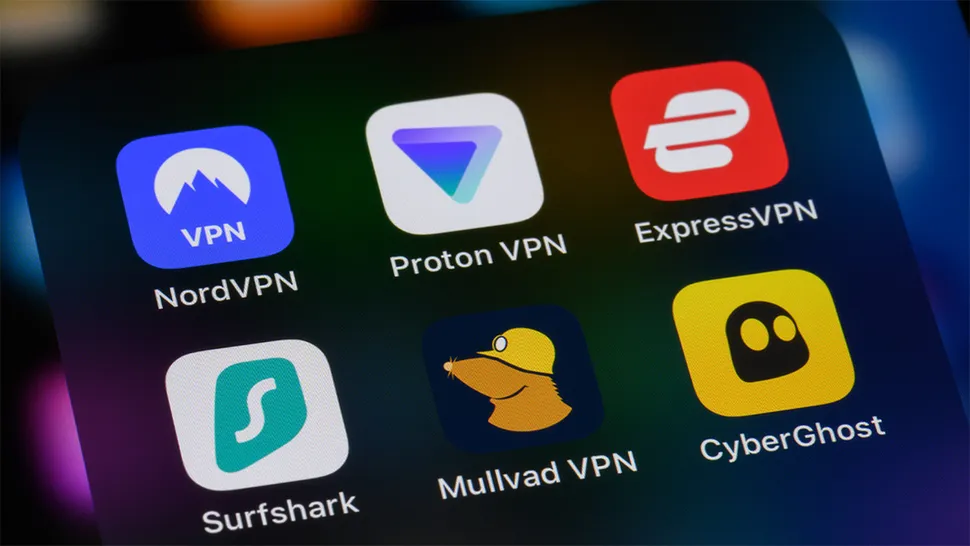
Buying a new iPhone is exciting. Whether you’ve upgraded to the latest model or picked up a recent release at a discount, you’re holding one of the most secure smartphones available. But even with Apple’s strong privacy protections, your internet traffic can still be monitored by networks, service providers, and malicious actors.
That’s where a virtual private network, commonly known as a VPN, comes in.
Installing a VPN on your iPhone is one of the simplest ways to encrypt your internet connection, protect your privacy, and unlock geo-restricted content. The process takes just a few minutes, and once it’s set up, you can connect with a single tap.
Here’s a complete, detailed guide on how to install a VPN on iPhone the right way.
Why You Should Use a VPN on iPhone
Although Apple devices are known for strong built-in security, they do not automatically encrypt your browsing traffic on public Wi-Fi networks.
A VPN helps by:
- Encrypting your internet data
- Hiding your IP address
- Preventing ISP tracking
- Securing public Wi-Fi connections
- Unlocking region-restricted streaming content
If you frequently travel, work remotely, or use airport and hotel Wi-Fi, a VPN adds a strong extra layer of protection.
Step 1: Choose a Reputable VPN Provider
Before installing anything, select a trustworthy VPN service.
Avoid random free apps with limited reviews. Some free VPNs collect data, display intrusive ads, or even contain malware. Instead, look for established providers with strong privacy policies and consistent positive reviews.
When evaluating a VPN, check for:
- A no-logs policy
- Strong encryption standards
- Fast connection speeds
- A user-friendly iOS app
- Reliable customer support
Premium providers often offer 30-day money-back guarantees, allowing you to test the service risk-free.
Step 2: Download the VPN App From the App Store
Open the App Store on your iPhone.
Search for the VPN provider you selected. Make sure the developer name matches the official company to avoid downloading fake copies.
Once you confirm the correct app:
- Tap “Get”
- Authenticate with Face ID, Touch ID, or your Apple ID password
- Wait for the installation to complete
Alternatively, you can visit the VPN provider’s official website and follow the link to the App Store. This reduces the risk of downloading a counterfeit app.
Step 3: Open the App and Grant Permissions
After installation, open the VPN app.
The app will request permission to add VPN configurations to your device. This is necessary for it to function properly.
Tap “Allow.”
You may be prompted to enter your passcode or confirm with Face ID. Granting this permission enables the VPN to securely route your internet traffic.
If the app asks for optional analytics data sharing, you can decline without affecting performance.
Step 4: Create an Account or Log In
If you already have a subscription:
- Enter your login credentials
- Sign in
If you are a new user:
- Choose a subscription plan
- Complete payment
- Create an account
Longer-term plans usually cost less per month but require upfront payment. Most reputable VPN providers offer a refund window if you change your mind.
After signing in, you’ll be taken to the app’s dashboard.
Step 5: Connect to a VPN Server
On the main screen, you will usually see a large “Connect” button.
Tap it.
The app will automatically connect you to the nearest and fastest available server. Within seconds, your connection will be encrypted.
If you prefer a specific country or region:
- Browse the server list
- Select your desired location
- Tap to connect
This feature is useful for accessing international streaming libraries or region-specific services.
Step 6: Enable Extra Security Features
Many VPN apps include additional features worth activating.
These may include:
- Kill switch (cuts internet if VPN disconnects)
- Auto-connect on public Wi-Fi
- Split tunneling
- Ad blocking
- Double VPN routing
You can find these in the app’s settings menu.
For maximum protection, enable auto-connect so your VPN activates whenever you join unsecured networks.
Step 7: Verify the VPN Is Working
To confirm your VPN is active:
- Look for the “VPN” icon at the top of your screen
- Visit an IP-checking website in Safari
- Confirm your IP address matches the selected server location
If everything looks correct, your VPN is functioning properly.
Does iPhone Have a Built-In VPN?
iPhones do not include a built-in VPN service.
However, iOS includes VPN configuration settings that allow third-party VPN apps to function.
You can manage VPN connections by going to:
Settings → General → VPN & Device Management
Here, you’ll see active VPN profiles and can toggle them on or off manually.
Can You Use a Free VPN on iPhone?
There are legitimate free VPNs available, but they usually come with limitations such as:
- Data caps
- Fewer servers
- Slower speeds
- Limited streaming access
Some free services also monetize by collecting user data.
If you only need occasional protection, a reputable free plan may suffice. However, for regular streaming, gaming, or travel use, a paid VPN offers better performance and stronger privacy guarantees.
Troubleshooting Common Issues
If your VPN fails to connect:
- Switch Wi-Fi networks
- Restart your iPhone
- Reinstall the app
- Update iOS
- Contact customer support
Most premium VPNs offer 24/7 live chat assistance.
If streaming services block your connection, try switching to a different server within the same country.
Managing Your VPN Daily
Using a VPN becomes second nature after installation.
You can:
- Leave it connected at all times
- Use auto-connect features
- Switch servers as needed
- Pause the connection temporarily
Modern VPN apps are optimized for minimal battery impact, so keeping it on throughout the day is usually safe.
Your iPhone is now protected with encrypted internet traffic, hidden IP address details, and improved privacy across networks.


