
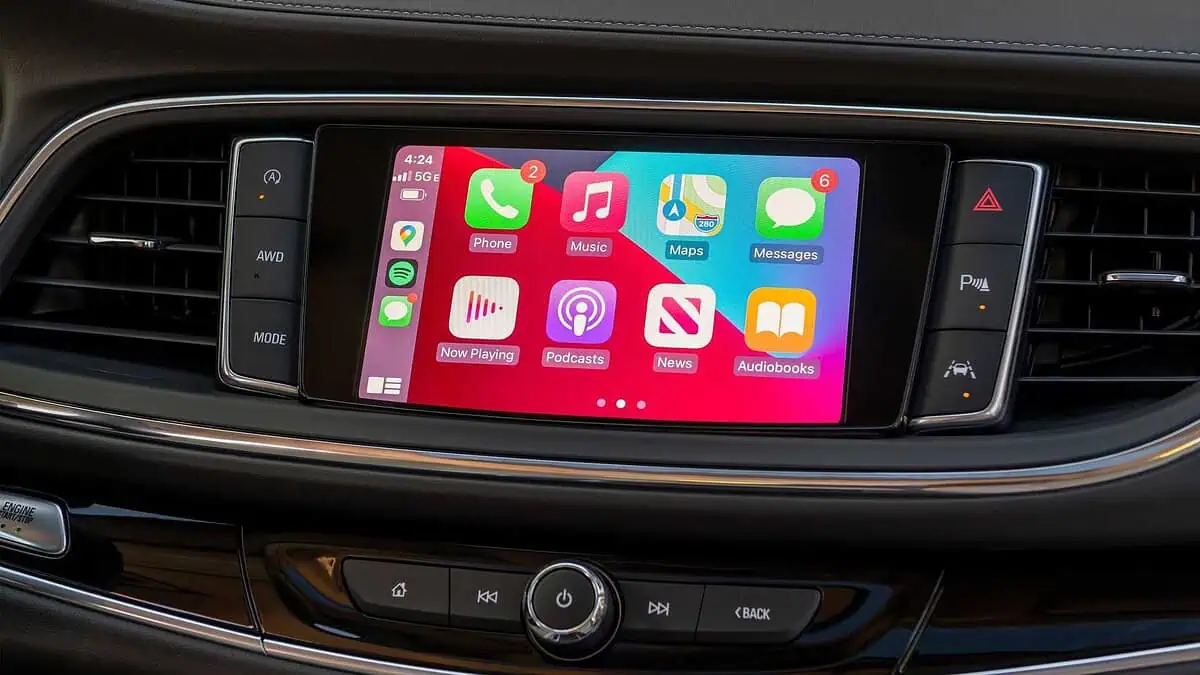
If Apple CarPlay suddenly stopped working after updating to iOS 26.2 or a newer version like iOS 26.3, you are not alone. Major and minor iOS updates often introduce small changes to Bluetooth timing, Wi-Fi behavior, permissions, or security settings. These changes can expose compatibility gaps between your iPhone and your car’s infotainment system.
The good news is that most CarPlay issues after an iOS 26 update are fixable without visiting a dealership. In many cases, the problem is a simple connection glitch, outdated head unit firmware, or a restriction setting that was quietly toggled during the update.
Below is a detailed troubleshooting guide to help you restore CarPlay functionality step by step.
Restart Your iPhone and Fully Reboot the Car System
After any iOS update, background processes can behave unpredictably. Restarting both your iPhone and your vehicle’s infotainment system clears temporary software glitches.
On your iPhone:
Go to Settings
Tap General
Scroll down and tap Shut Down
Power off the device
Wait at least 10 seconds
Turn it back on
For your car:
Turn off the engine completely
Open and close the driver’s door
Wait at least 30 seconds to ensure the infotainment system fully powers down
Restart the vehicle
Once both devices are back on, unlock your iPhone before connecting. Test CarPlay again.
Switch Between Wireless and Wired CarPlay
iOS 26 updates appear to have affected wireless CarPlay stability in some vehicles. Testing with a different connection method can help you isolate the issue quickly.
If you normally use wireless CarPlay:
Connect your iPhone using a high-quality USB cable and test wired mode.
If you normally use wired CarPlay:
Try a different USB cable from a certified MFi brand. Some cables support charging but not data transfer.
Also:
Try a different USB port if your car has multiple ports.
Plug in the iPhone before starting the vehicle.
Ensure Bluetooth and Wi-Fi are enabled if using wireless CarPlay.
A simple cable swap resolves more CarPlay failures than most people expect.
Check Screen Time Restrictions
Sometimes CarPlay is disabled through Screen Time restrictions, especially after a system update.
To verify:
Open Settings
Tap Screen Time
Tap Content & Privacy Restrictions
Select Allowed Apps
Ensure CarPlay is toggled on
If CarPlay is disabled here, it will not launch regardless of your connection method.
Forget the Car and Reconnect From Scratch
After iOS updates, pairing permissions between your iPhone and vehicle can become corrupted. Forgetting the vehicle and re-pairing it refreshes the connection.
On your iPhone:
Go to Settings
Tap General
Tap CarPlay
Select your vehicle
Tap Forget This Car
Next, remove your iPhone from the car’s Bluetooth or device list using the infotainment screen.
Then re-pair:
Open Settings
Go to General
Tap CarPlay
Follow the pairing instructions
This resets trust permissions and resolves handshake errors common after iOS 26.2 and newer releases.
Update iOS and Check for Head Unit Firmware Updates
Apple frequently releases minor updates to address bugs introduced in earlier versions. If you are still on iOS 26.2, upgrading to a newer patch such as iOS 26.3 or later may restore CarPlay compatibility.
To check for updates:
Open Settings
Tap General
Tap Software Update
Install any available updates and restart your device afterward.
Equally important is your car’s firmware. Many manufacturers release infotainment updates to maintain compatibility with new iOS versions.
Visit your vehicle manufacturer’s support website and check for:
Infotainment firmware updates
Head unit software upgrades
CarPlay compatibility patches
Some updates require USB installation, while others may need dealership service.
Reset Network Settings
Wireless CarPlay depends heavily on Bluetooth and Wi-Fi communication. After major iOS updates, saved network profiles can sometimes conflict with new system settings.
Resetting network settings can resolve persistent wireless issues.
To reset:
Open Settings
Tap General
Select Transfer or Reset iPhone
Tap Reset
Choose Reset Network Settings
Enter your passcode and confirm
This will remove:
Saved Wi-Fi networks
VPN settings
Bluetooth pairings
It will not delete apps, photos, or personal data.
After the reset, reconnect your Wi-Fi networks and set up CarPlay again.
Determine Whether the Problem Is Your Phone or the Vehicle
If troubleshooting has not resolved the issue, narrow down where the fault lies.
Test your iPhone in another CarPlay-compatible vehicle.
Test another iPhone in your car.
If your iPhone works elsewhere, the issue is likely your car’s head unit.
If another iPhone works in your car, your device may need deeper troubleshooting or support.
This simple comparison can save hours of unnecessary adjustments.
Additional Tips for Stabilizing CarPlay in iOS 26
Keep Bluetooth and Wi-Fi enabled at all times for wireless CarPlay.
Temporarily disable VPN apps while testing CarPlay connections.
Unlock your iPhone before plugging it in.
Remove old vehicles from Settings > General > CarPlay if you previously owned multiple cars.
Avoid using low-quality USB hubs or adapters between your phone and the car.
Frequently Asked Questions
Why did CarPlay stop working after updating to iOS 26?
System updates can change connection protocols, Bluetooth timing, and permission settings. These changes may expose compatibility issues in your car’s firmware.
Will updating to iOS 26.3 fix CarPlay problems?
In many cases, yes. Apple often addresses early post-update bugs in follow-up releases. However, compatibility also depends on your vehicle’s infotainment software.
Does resetting network settings delete my personal data?
No. It only removes Wi-Fi passwords, VPN settings, and Bluetooth pairings. Your photos, apps, and files remain intact.
My phone charges but CarPlay does not launch. Why?
This usually indicates a cable issue. Some USB cables provide power only and do not support data transfer. Replace the cable with a certified data-capable cable and test again.
If you have worked through each of these steps and CarPlay still fails to launch or disconnects randomly, you may need to contact Apple Support or your vehicle manufacturer’s infotainment support team for advanced diagnostics.
iOS updates sometimes reveal compatibility gaps that require firmware adjustments on the vehicle side. By methodically testing connection types, permissions, firmware versions, and network settings, most CarPlay disruptions in iOS 26.2 and newer can be resolved without professional repair.


