

WhatsApp is one of the most popular messaging platforms in the world, making it a vital tool for communication. Among its many features, the “Last Seen” status lets users know when their contacts were last active on the app. However, many users face issues with their Last Seen not updating, leaving them frustrated.
While there are several possible causes for this problem, one of the most common reasons is technical difficulties on WhatsApp’s servers. If WhatsApp is experiencing server downtime or outages, it can affect the functionality of many features, including the Last Seen timestamp. Luckily, there are several ways to check if server issues are the cause of your problem and what you can do about it.
1. Check for WhatsApp Server Issues on Downdetector
WhatsApp does not provide an official tool or website to check for outages or technical difficulties. However, there are third-party websites that help users determine if WhatsApp is facing widespread issues. One of the most reliable sites for this purpose is Downdetector.
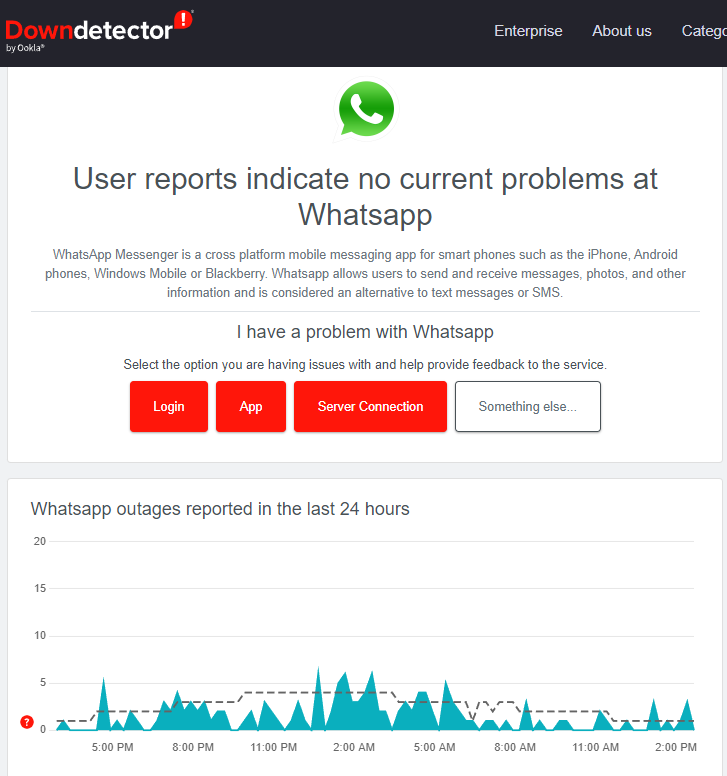
How to Use Downdetector:
- Go to Downdetector’s WhatsApp status page.
- Check the real-time outage map and the reported issues from other users.
- If there’s a spike in reported problems, it’s likely that WhatsApp is experiencing a technical issue, which might be the cause of your Last Seen not updating.
Downdetector tracks real-time data from millions of users and can give you a good indication of whether WhatsApp is down or facing problems. If you see a high number of reports or a sudden spike in issues, it’s a clear sign that the problem is on WhatsApp’s end and not your device.
2. Check Twitter for WhatsApp Outage Reports
Twitter is a platform where many users share their concerns when an app or service is experiencing problems. Whenever WhatsApp faces technical difficulties, many users will voice their frustrations or ask if others are facing the same issue. This can help you quickly identify whether WhatsApp is down for everyone or just a localized issue.
How to Check for WhatsApp Issues on Twitter:
- Go to Twitter.
- In the search bar, type “WhatsApp” and press enter.
- Browse through the tweets to see if other users are reporting similar problems, particularly with Last Seen updates.
- If you see a significant number of users mentioning issues, you can conclude that the problem may be widespread.
Twitter can provide real-time feedback, and if the issue is affecting many users, WhatsApp might already be working to resolve the problem. Usually, WhatsApp fixes server-related issues fairly quickly, often within an hour or so.
3. Wait for WhatsApp to Resolve the Issue
If you’ve confirmed that WhatsApp is experiencing server difficulties, the best thing to do is wait. WhatsApp’s technical team typically resolves server outages within a short period. In many cases, the issues are fixed in under an hour, especially if there’s widespread attention on the problem.
While you’re waiting, you can perform a few quick checks:
- Restart WhatsApp to ensure the app is refreshed.
- Try sending a message to see if the other features are working.
- Close and reopen the app to see if your Last Seen status updates after the refresh.
4. Check If Other Features Are Affected
Sometimes, server issues may not only affect the Last Seen feature but could impact other aspects of WhatsApp, such as sending or receiving messages, making voice/video calls, or updating your status.
To check if other features are working:
- Try sending a message to someone. If the message doesn’t go through, it’s likely a server issue.
- Test the voice or video call feature. If you experience issues with these, it further confirms that WhatsApp is facing server downtime.
- Check if your profile picture or status updates. If not, it could point to an overall technical issue with WhatsApp.
5. When the Problem Is Resolved
Once WhatsApp’s servers are back online, you should notice that the Last Seen status begins to update correctly again. However, if it doesn’t update immediately, try the following:
- Restart WhatsApp: Close the app completely and then reopen it to force the app to reload and fetch updated data.
- Check for Updates: Ensure you’re using the latest version of WhatsApp. Sometimes, app updates include bug fixes for problems related to server outages.


