

WhatsApp’s Last Seen feature is essential for users who want to know when someone was last active on the app. However, many users experience issues where the Last Seen timestamp doesn’t update correctly. One common reason for this problem is the Read Receipts feature being turned off. When this feature is disabled on either your device or the other person’s, WhatsApp may not show the correct Last Seen time.
In this article, we will explain what Read Receipts are, how they affect the Last Seen feature, and provide a step-by-step guide on how to enable them to fix the issue.
What Are Read Receipts?
Read Receipts are small blue check marks that appear next to a message on WhatsApp. When you send a message, one check mark means the message has been sent, two gray check marks mean the message has been delivered, and two blue check marks indicate that the message has been read. These blue check marks are a visual confirmation that the recipient has seen your message.
WhatsApp’s Last Seen feature works in a similar way. If Read Receipts are disabled on either device, WhatsApp may show an incorrect Last Seen time. This is because the app will rely on the Last Seen timestamp from when Read Receipts were last active.
Why Does Turning Off Read Receipts Affect Last Seen?
If you or the person you’re communicating with has disabled Read Receipts, WhatsApp may not be able to accurately display the Last Seen timestamp. This could lead to an outdated or incorrect time being shown when you try to view the Last Seen status.
For instance, if you have Read Receipts disabled, WhatsApp will show the time when you last had this feature turned on. Similarly, if the person you are trying to view has Read Receipts turned off, WhatsApp will show you the Last Seen time from when they last enabled the feature.
This can be particularly frustrating if you’re trying to determine when someone was last active, as you may see an old timestamp instead of the current time.
How to Enable Read Receipts on WhatsApp
Now that we understand why Read Receipts affect the Last Seen status, let’s walk through the steps to enable this feature on your device. Keep in mind that Read Receipts need to be enabled on both devices for the Last Seen feature to work correctly. If one device has them disabled, the Last Seen timestamp will not update as expected.
Here’s how to enable Read Receipts on WhatsApp:
Step 1: Launch WhatsApp
First, open WhatsApp on your device.
Step 2: Go to Settings
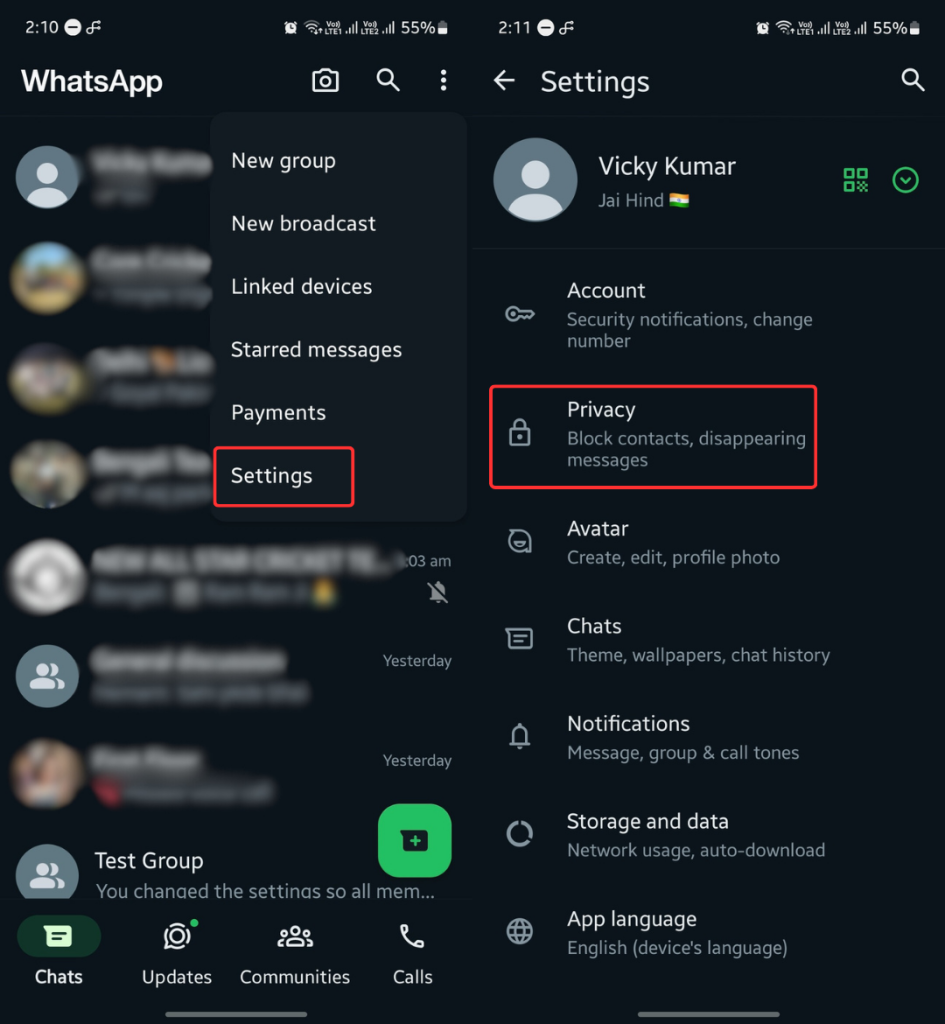
Once WhatsApp is open, tap the three vertical dots in the top-right corner of the screen. This will open a menu. From this menu, choose Settings.
Step 3: Select Privacy
In the Settings menu, tap on Privacy. This is where you can manage your privacy settings, including your Last Seen and Read Receipts options.
Step 4: Enable Read Receipts
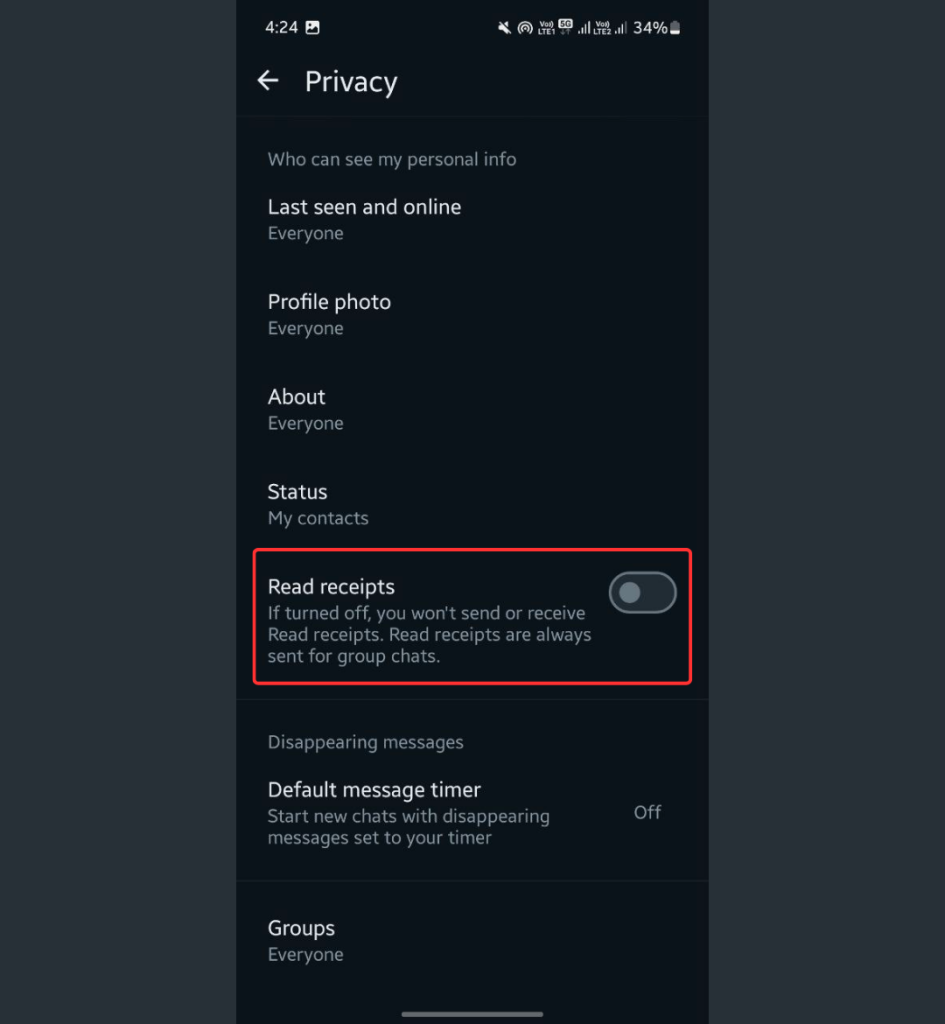
In the Privacy section, scroll down to find the Read Receipts option. Toggle this feature on to enable Read Receipts. Once enabled, the two blue check marks will appear whenever the recipient reads your messages, and your Last Seen will be updated properly.
Important Notes About Read Receipts and Last Seen
- Both Devices Need Read Receipts Enabled: For WhatsApp to show the correct Last Seen timestamp, Read Receipts must be enabled on both your device and the other person’s device. If either one of you has this feature disabled, the Last Seen status will not be updated.
- Private Messaging: Even with Read Receipts enabled, the recipient can still choose to hide their Last Seen status by adjusting the privacy settings in WhatsApp. This means they can stop others from seeing their Last Seen time, even if Read Receipts are turned on.
- Group Chats: Read Receipts work differently in group chats. When a message is read by everyone in a group, WhatsApp will show two blue check marks. However, Last Seen in group chats is not available. So, if you’re expecting to see a group member’s Last Seen status in a group chat, it won’t appear.
- Privacy Considerations: While enabling Read Receipts helps with updating Last Seen, it also means that others can see when you’ve read their messages. If you want to maintain your privacy, you can consider using the “My Contacts Except” option in your Last Seen privacy settings to limit who can see your status.


