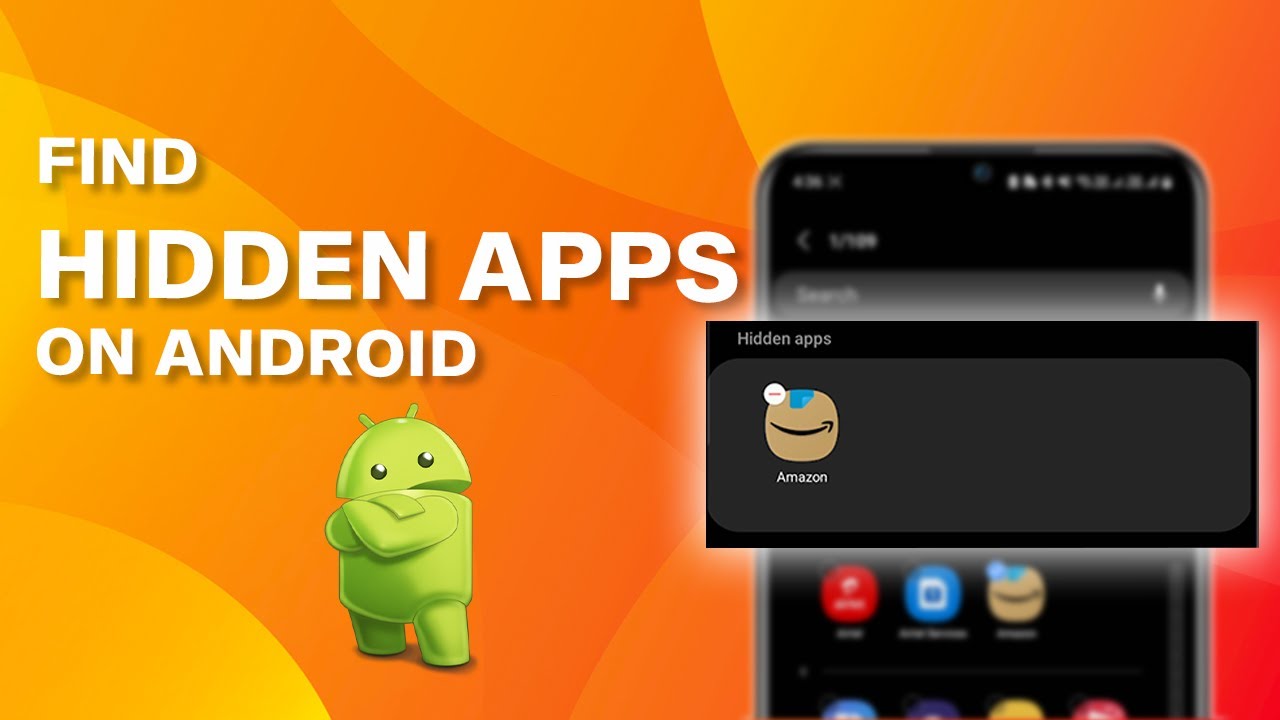


Samsung Galaxy phones are equipped with numerous privacy and customization features, allowing users to hide apps they don’t want to be easily visible. Whether you’re hiding apps for privacy reasons or simply organizing your device, accessing those hidden apps later can sometimes be a challenge. Fortunately, Bixby, Samsung’s voice assistant, can make it easy to open hidden apps without needing to search for them manually. Bixby is designed to help you perform tasks on your phone hands-free, and this includes launching apps, even the ones you’ve hidden.
In this article, we’ll walk you through how to use Bixby Assistant to open hidden apps on your Samsung Galaxy phone. This method is quick, easy, and lets you access your apps with just your voice, making it one of the most convenient ways to retrieve hidden apps.
Why Use Bixby to Open Hidden Apps?
There are several reasons why you might want to use Bixby to open hidden apps on your Samsung phone:
- Convenience: It’s much easier to ask Bixby to open an app with a simple voice command than to manually scroll through your app drawer looking for a hidden app.
- Speed: With Bixby, you can access hidden apps quickly, without having to navigate through settings or your app drawer.
- Privacy: If you’ve hidden an app for privacy reasons, using Bixby ensures that the app is opened discreetly without exposing it to others who might be using your phone.
Now, let’s take a look at how you can use Bixby to open hidden apps on your Samsung Galaxy device.
Step-by-Step Guide to Opening Hidden Apps Using Bixby
Step 1: Unlock Your Phone if It’s Locked
Before you can start using Bixby to open apps, make sure your Samsung Galaxy device is unlocked. If your phone is locked, simply use your fingerprint, PIN, or pattern to unlock it.
Bixby cannot function if your device is locked, so unlocking it first ensures that Bixby can interact with your apps properly.
Step 2: Press and Hold the Power Button to Wake Up Bixby
Once your phone is unlocked, activate Bixby by pressing and holding the power button (or the dedicated Bixby button if your phone model has one). This will bring up the Bixby voice assistant, ready for you to issue commands.
On newer Samsung Galaxy models (such as those without a physical Bixby button), holding down the power button will launch Bixby, just like on earlier devices where the Bixby button was available.
Step 3: Ask Bixby to “Open [Hidden App Name]”
Now comes the easy part. Simply ask Bixby to open the app you’ve hidden by saying a voice command like:
- “Open Instagram”
- “Open WhatsApp”
- “Open Facebook”
For example, if you’ve hidden Instagram on your device, just say, “Open Instagram,” and Bixby will launch the app immediately.
Bixby will recognize the app you’re referring to (as long as it’s installed and hidden) and will open it for you.
Step 4: Ensure Your Device is Connected to the Internet
Before using Bixby, make sure your phone is connected to the internet. Bixby relies on an active internet connection to process voice commands and interact with your phone’s apps and services. If your phone isn’t connected to Wi-Fi or mobile data, Bixby might not respond to your voice commands.
Tips for Using Bixby Effectively
While opening hidden apps with Bixby is straightforward, here are some additional tips to enhance your experience:
- Clear Voice Commands: Speak clearly and at a moderate pace to ensure that Bixby accurately recognizes your commands. If Bixby doesn’t understand you the first time, try rephrasing the command.
- Use Common App Names: When referring to your hidden apps, use the full name of the app as it appears on your phone. For example, instead of saying “Insta” for Instagram, say “Open Instagram.”
- Keep Bixby Updated: To ensure Bixby functions properly, always keep your Samsung device updated. New updates often improve voice recognition and add new features.
- Personalize Your Bixby Commands: Bixby also allows you to customize certain voice commands, making it easier to access specific apps or features. You can teach Bixby to recognize nicknames for apps or actions, so try experimenting with different commands.
- Voice Feedback Settings: If you prefer more privacy when using Bixby, you can adjust the voice feedback settings. You can set Bixby to speak less frequently or even disable some voice responses to keep your interactions more discreet.
Limitations of Using Bixby to Open Hidden Apps
While using Bixby is a quick and convenient way to open hidden apps, there are a few limitations to be aware of:
- Voice Recognition: If Bixby doesn’t understand your voice command or app name, it may not open the app correctly. Make sure you speak clearly, and if Bixby continues to misunderstand, try rephrasing your command.
- App Visibility: If you’ve hidden an app in a way that prevents it from appearing in search results (such as using third-party app-hiding apps), Bixby may not be able to open it. Make sure the app is still accessible within your device, even if it’s hidden from the app drawer.
- Limited Language Support: While Bixby supports multiple languages, the voice recognition may not work as well in all languages or accents. If you encounter issues, check the language settings on your device to ensure they match the language you’re using.