Categories

  • iPhones with the Best Camera in 2026: Top Apple Devices for Photography

    iPhones with the Best Camera in 2026: Top Apple Devices for Photography

    587 shares
    Share 235 Tweet 147
  • Comprehensive List of C Plain Courses Offered at KMTC: Requirements, Duration, and Specializations

    585 shares
    Share 234 Tweet 146
  • Apple iPhone 8 Full Phone Specifications

    585 shares
    Share 234 Tweet 146
  • Apple iPad Mini 2 Full Tablet Specifications

    585 shares
    Share 234 Tweet 146
  • How to Open Hidden Apps on Samsung Galaxy Phones Using Bixby Assistant

    585 shares
    Share 234 Tweet 146
  • Forest Stuns Liverpool With Dominant 3-0 Win at Anfield

    585 shares
    Share 234 Tweet 146
  • Top 10 Most Loved and Respected African Leaders

    585 shares
    Share 234 Tweet 146
  • Realme 12x Full Phone Specifications

    586 shares
    Share 234 Tweet 147
  • Huawei Y7 Pro (2019) Full Phone Specifications

    585 shares
    Share 234 Tweet 146
Misoi Duncun
No Result
View All Result
  • FOREX
  • News
  • Business
    • Finance & Insurance
  • Lifestyle
  • Fitness
  • Health
  • Sports
  • Gadget Specs
AI News
No Result
View All Result
Misoi Duncun
No Result
View All Result

How to Open Hidden Apps on Your Samsung Phone Using the Google Play Store

by Misoi Duncan
December 15, 2025
in How To
Reading Time: 5 mins read
A A
Share TweetSharePinShareShareShareScan

You might also like

How to Remove Accounts From a Shared Mac Computer

How to Remove Extra Users and Accounts From a Shared Android Device

Locked Out of Facebook? A Complete Guide to Recovering a Hacked Facebook Account.

How to Stop Location Tracking on Your Phone

How to Disable Location Tracking on iPhone and iPad

How to Detect Botnet-Linked VPN Apps on Windows

IPhone Privacy Guide: How to Delete Cookies, Cache, and Browsing Data

How to Activate Two-Step Verification For WhatsApp Security

How to Enable Two-Factor Authentication on Facebook

TikTok Age Verification Explained: How Users Can Navigate New Restrictions Safely

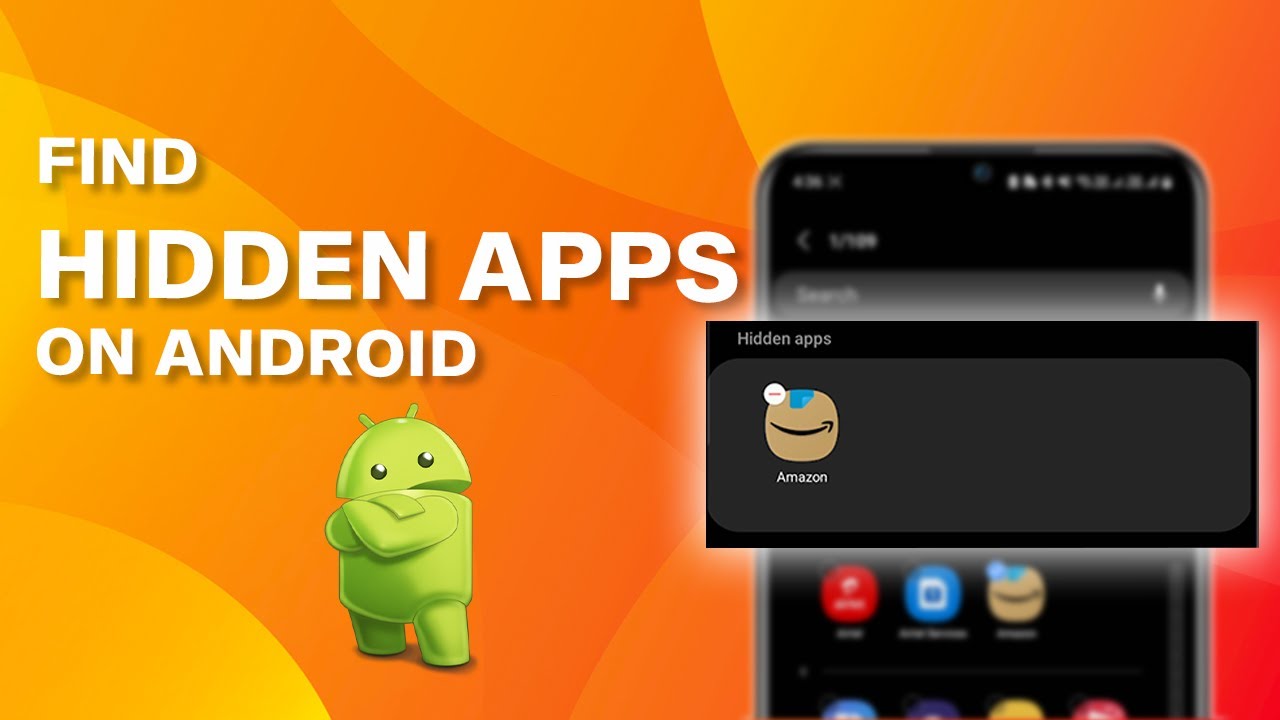
Samsung Galaxy phones offer a wide range of features, including the ability to hide apps for privacy, organization, or security. However, if you’ve hidden an app and want to access it again, it’s not always obvious how to find it. Luckily, the Google Play Store offers a simple trick to open hidden apps without the need to manually search for them in your app drawer or settings.

In this guide, we’ll walk you through the steps on how to use the Google Play Store to open hidden apps on your Samsung phone.

Why Use the Google Play Store to Open Hidden Apps?

The Google Play Store is often overlooked as a tool for accessing apps, but it can actually help you find and open apps that are hidden from the home screen or app drawer. Here are some reasons why you might prefer using the Play Store for this task:

  • Quick Access: You can quickly locate a hidden app without having to scroll through multiple settings or navigate to the app drawer.
  • No Need to Unhide: You don’t need to go through the process of un-hiding an app manually. Simply use the Play Store to open it directly.
  • Easy Search: The Play Store allows you to search for your apps by name, making it simple to find even apps that you’ve hidden.

Let’s dive into the steps to use the Google Play Store to open your hidden apps.

Step-by-Step Guide to Opening Hidden Apps Using Google Play Store

Step 1: Open the Google Play Store on Your Phone

To begin, launch the Google Play Store on your Samsung Galaxy device. You can do this by tapping the Play Store icon from your home screen or app drawer.

Once the Google Play Store is open, you’ll be ready to search for your hidden app.

Step 2: Search for the Hidden App

In the Google Play Store, use the search bar at the top of the screen to search for the app you want to open.

For example, if you’ve hidden Instagram, simply type “Instagram” into the search bar.

You don’t need to worry about whether the app is visible in your app drawer or home screen. The Play Store will show the app in its search results, even if it’s hidden.

Step 3: Tap on the App and Click “Open”

Once the app appears in the search results, tap on the app listing. You’ll be taken to the app’s page within the Play Store.

Instead of tapping Install (which would be the option if the app wasn’t already installed), you’ll see an Open button. Tap Open to launch the hidden app directly from the Play Store.

This trick works because the Google Play Store can always recognize and access apps installed on your phone, even if they are hidden from your app drawer or home screen.

Additional Tips for Managing Hidden Apps on Samsung Phones

While using the Google Play Store is a great workaround to access hidden apps, you may want to manage your apps in a more organized way. Here are some tips for managing hidden apps on your Samsung Galaxy device:

Unhide Apps Through Settings

If you want to unhide an app and restore it to your home screen or app drawer, follow these steps:

  1. Go to Settings on your phone.
  2. Scroll down to Apps or Applications.
  3. Tap on See all apps or App manager.
  4. Tap on the three-dot menu in the top-right corner and select Show system apps.
  5. Find the app you want to unhide, tap on it, and select Enable if it’s disabled.

Use App Lock or App Hiding Features for More Privacy

For additional privacy, consider using the App Lock or Secure Folder features on your Samsung device:

  • App Lock: This feature allows you to lock specific apps with a PIN or fingerprint, so they stay hidden and secure.
  • Secure Folder: A more advanced privacy feature that creates an encrypted space for your apps and data, ensuring that no one can access them without your permission.

Organize Your Apps for Easier Access

If you have several apps you prefer to keep hidden, you can organize them in folders or use a third-party app to hide them more effectively.

Why Google Play Store Works for Hidden Apps

You might wonder why Google Play Store can access hidden apps when they’re not visible on your device. This is because Play Store is deeply integrated with your phone’s operating system. When you install an app from the Play Store, it registers the app in the system, allowing the Play Store to interact with it even if the app is hidden from the app drawer.

Hidden apps are simply apps that are no longer displayed in the app drawer or home screen, but they still exist in the phone’s storage and are recognized by the Play Store.

Previous Post

How to Open Hidden Apps on Samsung Galaxy Phones Using Bixby Assistant

Next Post

How to Find Deeply Hidden Apps on Your Smartphone: A Comprehensive Guide

Misoi Duncan

Misoi Duncan

www.misoiduncan.com is a Kenyan-based blog dedicated to providing insightful news, guides, and updates on technology, finance, travel, sports, and lifestyle. The platform aims to inform, educate, and entertain Kenyan readers by delivering accurate, up-to-date content that addresses everyday challenges, emerging trends, and opportunities within Kenya and beyond. Whether it’s step-by-step “how-to” guides, in-depth analyses, or local and international news, www.misoiduncan.com is your go-to resource for practical and engaging information.

Related Stories

How to Remove Accounts From a Shared Mac Computer
How To

How to Remove Accounts From a Shared Mac Computer

March 16, 2026
How to Remove Extra Users and Accounts From a Shared Android Device
How To

How to Remove Extra Users and Accounts From a Shared Android Device

March 16, 2026
Locked Out of Facebook? A Complete Guide to Recovering a Hacked Facebook Account.
How To

Locked Out of Facebook? A Complete Guide to Recovering a Hacked Facebook Account.

March 16, 2026
How to Stop Location Tracking on Your Phone
How To

How to Stop Location Tracking on Your Phone

March 16, 2026
How to Disable Location Tracking on iPhone and iPad
How To

How to Disable Location Tracking on iPhone and iPad

March 16, 2026
How to Detect Botnet-Linked VPN Apps on Windows
How To

How to Detect Botnet-Linked VPN Apps on Windows

March 16, 2026
IPhone Privacy Guide: How to Delete Cookies, Cache, and Browsing Data
How To

IPhone Privacy Guide: How to Delete Cookies, Cache, and Browsing Data

March 16, 2026
How to Activate Two-Step Verification For WhatsApp Security
How To

How to Activate Two-Step Verification For WhatsApp Security

March 16, 2026
How to Enable Two-Factor Authentication on Facebook
How To

How to Enable Two-Factor Authentication on Facebook

March 16, 2026
TikTok Age Verification Explained: How Users Can Navigate New Restrictions Safely
How To

TikTok Age Verification Explained: How Users Can Navigate New Restrictions Safely

March 16, 2026
Next Post
How to Find Deeply Hidden Apps on Your Smartphone: A Comprehensive Guide

How to Find Deeply Hidden Apps on Your Smartphone: A Comprehensive Guide

How to Check Message Read Status on Google Messages: A Complete Guide

How to Check Message Read Status on Google Messages: A Complete Guide

ADVERTISEMENT
Facebook Twitter Instagram TikTok

Important Links

  • About Us
  • Privacy Policy
  • Terms
  • Contact Us
  • Donate
  • Careers
  • Advertise
  • DMCA Copyright Policy
  • Follow Us

Caregories

More About MD

Explore the latest in tech, news, and entertainment at Misoi Duncan. Our mission is to keep you informed and engaged through high-quality articles. Under the leadership of Misoi Duncan, we focus on delivering not just the news, but a truly immersive and interactive digital experience.

© 2025 Misoi Duncan

No Result
View All Result
  • FOREX
  • News
  • Business
    • Finance & Insurance
  • Lifestyle
  • Fitness
  • Health
  • Sports
  • Gadget Specs

© 2025 Misoi Duncan

This website uses cookies. By continuing to use this website you are giving consent to cookies being used. Visit our Privacy and Cookie Policy.