
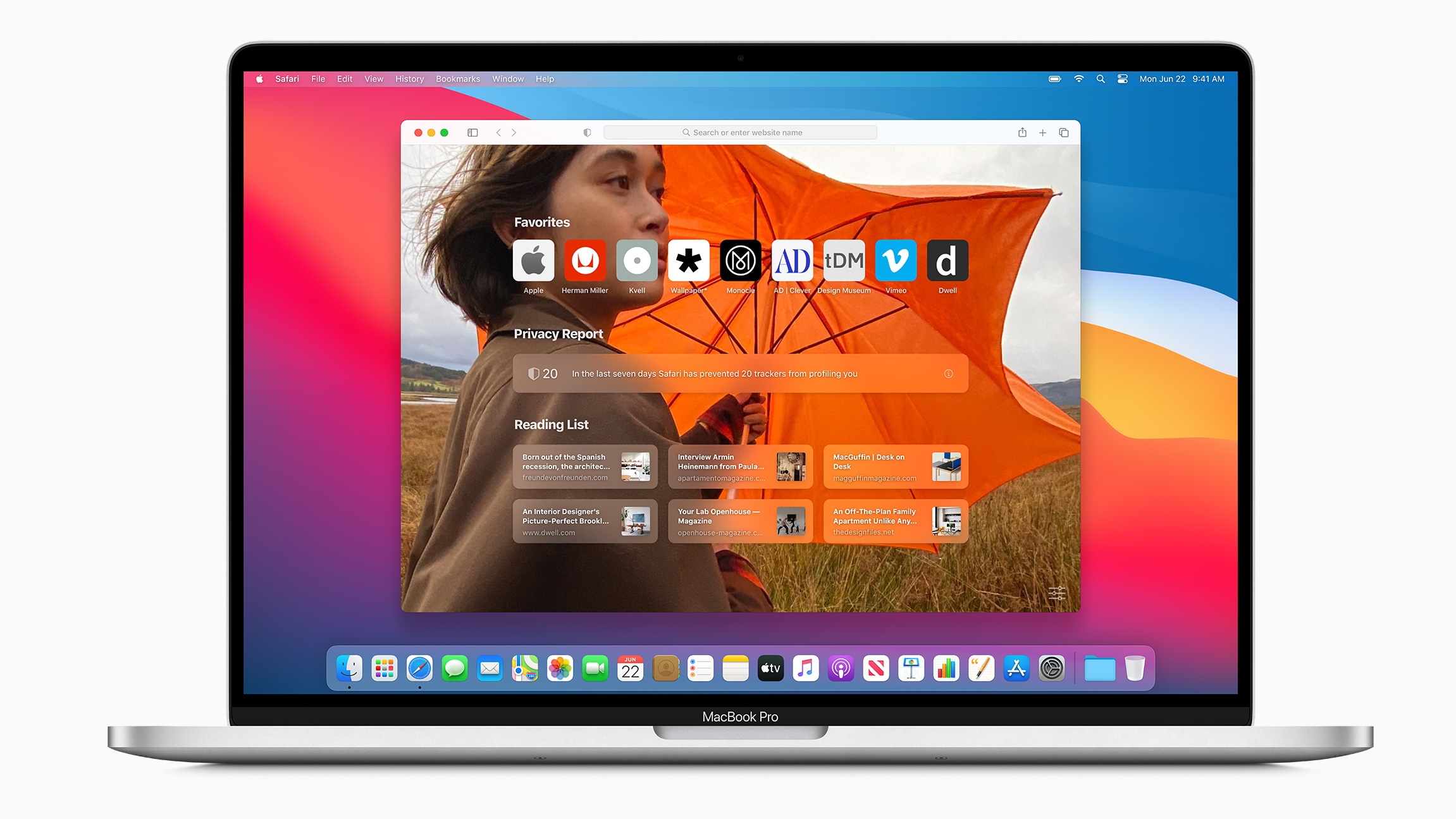
Recording your screen on a Mac does not require expensive third-party software. Apple has included native screen recording tools in macOS for years, allowing users to capture their display directly using built-in features. Whether you want to create tutorials, record a website demo, capture gameplay, or explain a workflow to a colleague, macOS offers simple and powerful solutions.
This guide explains how to record your screen using macOS shortcuts and QuickTime Player. It also covers audio options, mouse click highlighting, storage settings, export formats, and advanced recording controls.
Built-In Screen Recording in macOS
Apple introduced native screen recording functionality starting with Mac OS X Snow Leopard. Over time, the feature evolved significantly, especially in macOS Mojave and later versions.
Today, you can record your screen using:
- The Screenshot Toolbar (macOS Mojave and later)
- QuickTime Player (macOS 10.6 and above)
Both methods are built directly into macOS and require no additional downloads.
How to Record Screen on macOS Using Keyboard Shortcuts
If you are using macOS Mojave or later, the fastest way to begin recording is through a keyboard shortcut.
Step 1: Open the Screenshot and Recording Toolbar
Press:
Shift + Command + 5
This opens the screen capture panel at the bottom of your screen.
You will see multiple options:
- Capture Entire Screen
- Capture Selected Window
- Capture Selected Portion
- Record Entire Screen
- Record Selected Portion
The first three options are for screenshots. The last two are for screen recording.
Step 2: Choose Recording Mode
You can either:
- Record the entire display
- Record only a selected portion of your screen
If you choose a selected portion, drag the frame to adjust the recording area.
Step 3: Configure Recording Options
Click the Options button in the toolbar to customize your recording settings.
Here you can:
- Select the save location (Desktop, Documents, Movies, or custom folder)
- Set a timer (None, 5 seconds, or 10 seconds)
- Choose microphone input (Built-in microphone or external mic)
- Enable or disable floating thumbnail preview
- Highlight mouse clicks
Highlighting mouse clicks adds a visual circle around your cursor when clicked. This feature is especially helpful when creating instructional videos or software demonstrations.
Step 4: Start Recording
Click Record.
Your Mac will begin recording either the full screen or selected region.
While recording, a circular Stop button appears in the top menu bar near Wi-Fi and battery indicators.
Step 5: Stop Recording
Click the Stop button in the menu bar when finished.
Your recording will automatically save to your chosen location.
By default, macOS saves recordings as .mov files.
Recording Screen Using QuickTime Player
If you prefer using an application interface instead of shortcuts, QuickTime Player offers a reliable alternative.
QuickTime is preinstalled on macOS and is commonly used for media playback, but it also includes recording tools.
Step 1: Launch QuickTime Player
Open QuickTime Player from:
Applications > QuickTime Player
Step 2: Start a New Screen Recording
In the menu bar:
Click File > New Screen Recording
A small recording control window will appear.
Step 3: Configure Recording Settings
Before starting, click the small dropdown arrow next to the record button.
Here you can choose:
- Microphone source
- Recording quality
- Mouse click highlighting
You can select your built-in microphone to record voice narration or choose an external mic for better audio quality.
If you do not want audio, leave the microphone option unchecked.
Step 4: Begin Recording
Click the red Record button.
You will be prompted to:
- Click anywhere to record the full screen
- Drag to select a specific portion
Choose your preferred method and begin recording.
During recording, QuickTime minimizes interference and stays out of the way. In newer macOS versions, it does not appear visibly in your capture.
Step 5: Stop Recording
To stop recording, either:
- Click the Stop button in the menu bar
- Press Command + Control + Escape
After stopping, the recorded video automatically opens in QuickTime for preview.
You can now:
- Trim the video
- Save it with a custom name
- Export it in different formats
Audio Recording Options on Mac Screen Capture
macOS screen recording tools allow you to capture audio in multiple ways.
You can record:
- Microphone input (voice narration)
- System audio (using additional tools in some cases)
The built-in tool primarily captures microphone audio. If you need to record system audio directly, additional configuration or third-party extensions may be required.
Selecting the correct microphone source ensures clear voice recording during tutorials or presentations.
Highlighting Mouse Clicks
If you are creating instructional content, enabling mouse click highlighting improves viewer clarity.
When activated, macOS adds a visible circle around the cursor whenever you click. This makes it easier for viewers to follow your actions.
This option is available under:
Shift + Command + 5 > Options > Show Mouse Clicks
Or through QuickTime’s dropdown menu.
Choosing Storage Location for Recordings
By default, macOS saves screen recordings to the Movies folder.
You can change this by:
Shift + Command + 5 > Options > Save To
Select:
- Desktop
- Documents
- Clipboard
- Custom location
Choosing Desktop allows quick access, while saving to Movies keeps recordings organized.
Exporting and File Formats
macOS screen recordings are saved in .mov format.
If you need a different format:
- Open the recording in QuickTime Player.
- Click File > Export As.
- Choose your desired resolution and format.
You can adjust quality based on:
- Storage capacity
- Video clarity requirements
- Sharing platform limitations
Higher quality recordings take up more storage space.
Compatibility Notes for Older macOS Versions
QuickTime screen recording is available on macOS 10.6 and above.
If you are running macOS 10.5 or earlier, native screen recording may not be available. In such cases, upgrading macOS is often more practical than purchasing separate screen recording software.
Newer macOS versions provide:
- More advanced recording controls
- Improved performance
- Better cursor visibility options
- Enhanced export flexibility
Upgrading ensures compatibility and access to modern features.
When to Use Mac Screen Recording
The built-in screen recording feature is useful for:
- Creating software tutorials
- Demonstrating websites
- Recording presentations
- Capturing troubleshooting steps
- Sharing walkthroughs with clients
- Creating educational content
Since it is built into macOS, it eliminates the need for additional applications and saves both time and money.
macOS provides a simple yet powerful solution for screen recording directly through keyboard shortcuts or QuickTime Player. With features like mouse click highlighting, microphone input selection, custom save locations, and flexible export options, you can create professional-quality recordings without installing extra software.


