
Gmail is built by Google, a company synonymous with powerful search technology. It should come as no surprise that Gmail includes a highly capable search engine designed to help users locate specific emails within seconds. However, many people only use the basic search bar without taking advantage of its advanced features.
If you’ve ever struggled to find an old attachment, a specific conversation, or an email buried under thousands of messages, Gmail’s advanced search tools can completely change the way you manage your inbox. This guide explains how to use Gmail Advanced Search, the most useful operators, hidden tricks, and how to turn searches into automatic filters.
Why Gmail Advanced Search Matters
Over time, inboxes accumulate thousands of emails. Searching manually by scrolling is inefficient, especially when trying to find:
- A specific attachment
- A message from a certain sender
- Emails sent within a date range
- Conversations with particular keywords
Gmail Advanced Search allows you to narrow results using operators, filters, and structured queries. Once you understand the system, locating emails becomes fast and precise.
Accessing Gmail Advanced Search
There are two ways to perform advanced searches in Gmail.
Using the Search Bar Directly
You can type operators directly into the search bar at the top of Gmail.
For example:
from:[email protected]
This will return all emails sent by that address.
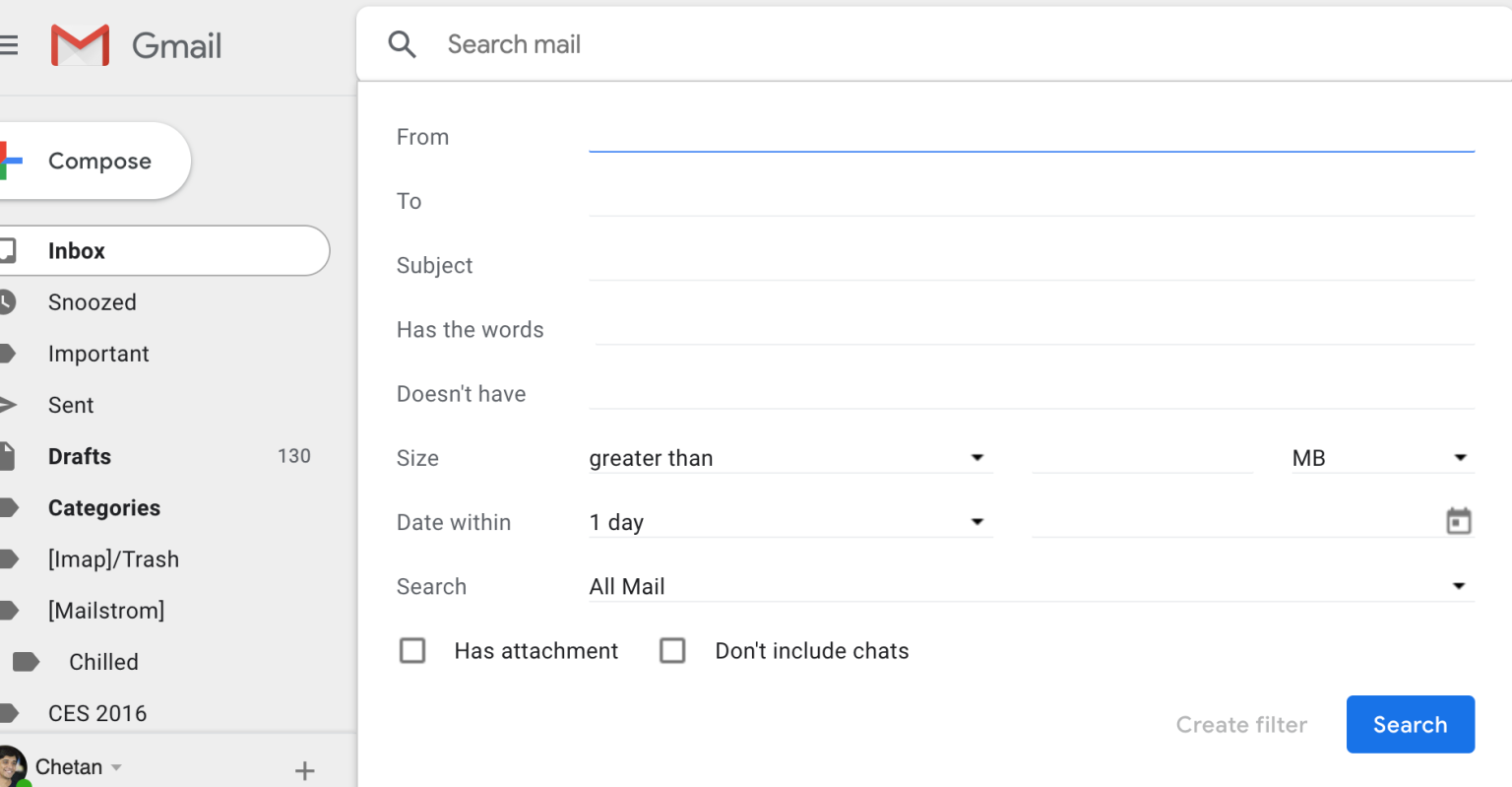
Using the Advanced Search Panel
Click the small downward arrow on the right side of the search bar. This opens the advanced search form where you can enter:
- From
- To
- Subject
- Words included
- Words excluded
- Size
- Date range
- Attachments
When you run a search from this panel, Gmail automatically converts your criteria into search operators. Observing this conversion helps you learn the syntax for future searches.
Essential Gmail Search Operators
Below are the most important operators you can use directly in the Gmail search bar.
from:
Find emails sent by a specific address.
Example:
from:[email protected]
to:
Find emails sent to a particular address.
Example:
to:[email protected]
subject:
Search within the subject line only.
Example:
subject:invoice
label:
Search emails under a specific label.
Example:
label:work
has:attachment
Display only emails that include attachments.
Example:
has:attachment
is:chat
Search only Google Chat conversations stored in Gmail.
in:anywhere
By default, Gmail excludes Spam and Trash from search results. Using this operator forces Gmail to search all folders.
Example:
in:anywhere budget
Combining Search Operators for Precision
You can combine multiple operators to refine results.
Example:
from:[email protected] has:attachment
This will display emails from John that contain attachments.
The more specific your query, the more accurate your results.
Advanced Search Techniques
To elevate your Gmail search skills, understanding special characters and operators is essential.
Using Parentheses ( )
Parentheses group search terms together.
Example:
subject:(project update)
This tells Gmail to search for emails with both “project” and “update” in the subject line.
Without parentheses:
subject:project update
This would search for “project” in the subject and “update” anywhere in the email body.
Using OR (Must Be Capitalized)
The OR operator searches for one term or another.
Example:
subject:(invoice OR receipt)
This returns emails with either “invoice” or “receipt” in the subject.
You can also combine filters:
from:example.com OR has:attachment
This shows emails either from that domain or containing attachments.
Using the Minus Sign (-)
The hyphen excludes specific terms.
Example:
-from:gmail.com
This displays emails from senders who do not use Gmail.
Another example:
invoice -draft
This finds emails containing “invoice” but excludes those with “draft.”
Using Quotation Marks (” “)
Quotation marks search for exact phrases.
Example:
“meeting agenda for Monday”
Gmail will only return emails containing that exact phrase.
This is useful when you remember precise wording.
Hidden Gmail Search Tricks
Gmail includes additional advanced operators that many users overlook.
list:
Search emails from a mailing list.
Example:
list:[email protected]
filename:
Search for specific file attachments by name.
Example:
filename:resume.pdf
This displays emails containing an attachment named resume.pdf.
You can also search by file type:
filename:pdf
is:important or label:important
If you use Priority Inbox, this shows important emails only.
Example:
is:important
Star Filters
If you use multiple star types in Gmail settings, you can search for them individually.
Examples:
has:yellow-star
has:red-star
has:green-check
cc: and bcc:
Find emails where someone was copied.
Example:
cc:[email protected]
This returns emails where that person was included as a carbon copy.
Similarly:
bcc:[email protected]
Searching by Date and Size
You can also filter emails by time period or file size.
Examples:
before:2023/01/01
after:2022/12/31
Larger emails:
larger:5M
This shows emails larger than 5 megabytes.
These operators are especially helpful when looking for large attachments or old documents.
Creating Filters from Advanced Searches
One of Gmail’s most powerful features is converting searches into automatic filters.
If you frequently search for certain types of emails, you can automate actions such as:
- Applying labels
- Marking as read
- Archiving
- Deleting
- Forwarding
- Marking as important
How to Create a Filter
- Click the dropdown arrow in the search bar.
- Enter your search criteria.
- Click Create filter.
- Choose the actions you want Gmail to perform automatically.
- Click Create filter again.
Now, every incoming email matching your criteria will be handled automatically.
Managing Existing Filters
To view or edit your filters:
- Click the gear icon.
- Select See all settings.
- Go to the Filters and Blocked Addresses tab.
From here, you can edit, delete, or adjust existing filters.
Using filters in combination with advanced search dramatically improves inbox organization.
Practical Examples of Gmail Advanced Search
Here are some real-world use cases:
Find your resume attachment:
filename:resume.pdf
Find emails from HR containing attachments:
from:[email protected] has:attachment
Find invoices sent last year:
subject:invoice after:2022/01/01 before:2023/01/01
Find emails excluding promotions:
-promotion
Find unread important emails:
is:unread is:important
Mastering Gmail Advanced Search turns your inbox into a searchable database instead of a cluttered archive. With the right combination of operators, filters, and exact phrase searches, you can retrieve emails in seconds instead of minutes.


