
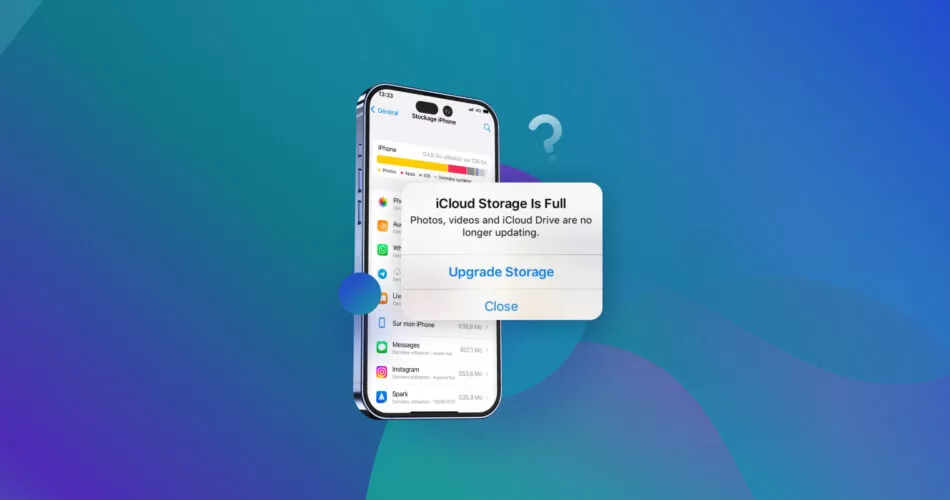
If you use iCloud to sync your photos, videos, contacts, and documents, you have probably seen the frustrating message: “Not Enough Storage.” Apple provides 5GB of free iCloud storage with every account, but for most users, that space fills up quickly.
If you actively use iCloud backups, store media files, or sync multiple Apple devices under one Apple ID, running out of storage is almost inevitable. When your storage limit is reached, your iPhone or iPad may stop backing up automatically, leaving your important data unprotected.
This detailed guide explains why the iCloud “Not Enough Storage” error appears and provides step-by-step solutions to free up space or upgrade your plan.
Why You See the “Not Enough Storage” Message
Apple’s free 5GB storage tier is shared across:
- iPhone and iPad backups
- Photos and videos (if iCloud Photos is enabled)
- iCloud Drive documents
- Messages backups
- App data
- Mail storage
If you use multiple devices under the same Apple ID, they all draw from the same 5GB pool.
High-resolution photos and videos are usually the main reason storage fills up quickly. Even a few short 4K videos can consume several gigabytes of space.
When storage runs out, you may see a message similar to:
“This iPhone cannot be backed up because there is not enough iCloud storage available.”
At that point, you must either free up space or purchase additional storage.
Step 1: Check What Is Using Your iCloud Storage
Before deleting anything, it is important to understand what is consuming the most space.
How to View iCloud Storage Usage
- Open the Settings app on your iPhone or iPad.
- Tap your Apple ID at the top.
- Select iCloud.
- Tap Manage Storage.
You will see a breakdown of storage usage by category, such as:
- Photos
- Backups
- Messages
- iCloud Drive
- Apps
This overview helps identify the main storage hog.
Step 2: Backup and Remove Photos from iCloud
Photos and videos are typically the largest storage consumers.
If you want to free up space without permanently losing media files, consider backing them up elsewhere first.
Option 1: Transfer to a Computer or External Drive
- Connect your iPhone to a Mac or PC.
- Import photos using Finder, Photos app, or Windows Explorer.
- Save them to an external hard drive for extra safety.
After confirming the backup is successful, you can delete older media from your device and iCloud.
Option 2: Use Alternative Cloud Storage
If you need online access to your photos but want more space, consider uploading them to:
- Google Drive
- Google Photos
- OneDrive
Videos can also be uploaded privately to YouTube for storage without public visibility.
Once you have secured your media elsewhere, delete unnecessary photos and videos from your iPhone and empty the Recently Deleted folder to fully reclaim space.
Step 3: Remove Unnecessary Documents and App Data
If photos are not the primary cause of storage usage, documents and app data may be responsible.
How to Delete App Data from iCloud
- Go to Settings.
- Tap your Apple ID.
- Select iCloud.
- Tap Manage Storage.
- Choose an app under Documents & Data.
- Tap Delete Data or Delete All Data.
Some apps store large files in iCloud Drive, including note-taking apps, messaging apps, and productivity tools.
Review each app carefully before deleting data to avoid removing important files.
Step 4: Disable Backup for Unnecessary Apps
Not every app needs to be backed up to iCloud. Disabling backup for less important apps can significantly reduce storage usage.
How to Turn Off Backup for Specific Apps
- Open Settings.
- Tap your Apple ID.
- Select iCloud.
- Tap Manage Storage.
- Choose Backups.
- Select your device.
- Under Choose Data to Backup, toggle off apps you do not need backed up.
- Tap Turn Off & Delete to confirm.
This prevents future backups from including data from those apps.
Step 5: Manage Backups from Multiple Devices
If you use several devices with the same Apple ID, all backups count toward the same storage limit.
To review backups:
- Go to Settings.
- Tap your Apple ID.
- Select iCloud.
- Tap Manage Storage.
- Select Backups.
You may see old backups from devices you no longer use. Deleting outdated backups can instantly free up storage.
Before deleting, confirm you no longer need the backup.
Step 6: Clean Up Messages and Mail Storage
If you use iCloud for Messages or Mail, large attachments can take up space.
To reduce message storage:
- Delete conversations with large video attachments.
- Remove unnecessary media files.
For Mail:
- Delete emails with large attachments.
- Empty the Trash folder to permanently remove them.
Step 7: Purchase More iCloud Storage
If your data is important and you do not want to delete anything, upgrading your storage plan may be the best option.
Apple offers paid iCloud storage tiers that are shared across all devices under your Apple ID.
How to Upgrade iCloud Storage
- Open Settings.
- Tap your Apple ID.
- Select iCloud.
- Tap Manage Storage.
- Choose Change Storage Plan or Buy More Storage.
- Select your preferred storage tier.
- Confirm your purchase.
Your payment method linked to your Apple ID will be charged immediately.
The subscription renews automatically each month until canceled.
Upgrading allows all your devices to benefit from the increased storage.
Tips to Prevent Running Out of iCloud Storage Again
To avoid encountering the “Not Enough Storage” message repeatedly:
- Periodically review storage usage.
- Delete unnecessary backups from old devices.
- Move large media files to external storage.
- Disable backups for unused apps.
- Use optimized storage settings for photos.
Regular storage management ensures smooth backups and prevents unexpected errors.
iCloud storage is designed to protect your important data, but the free 5GB plan fills up quickly if you frequently capture photos, record videos, or use multiple Apple devices. Understanding what consumes space and applying the right cleanup strategies can help you regain control of your cloud storage efficiently.


