
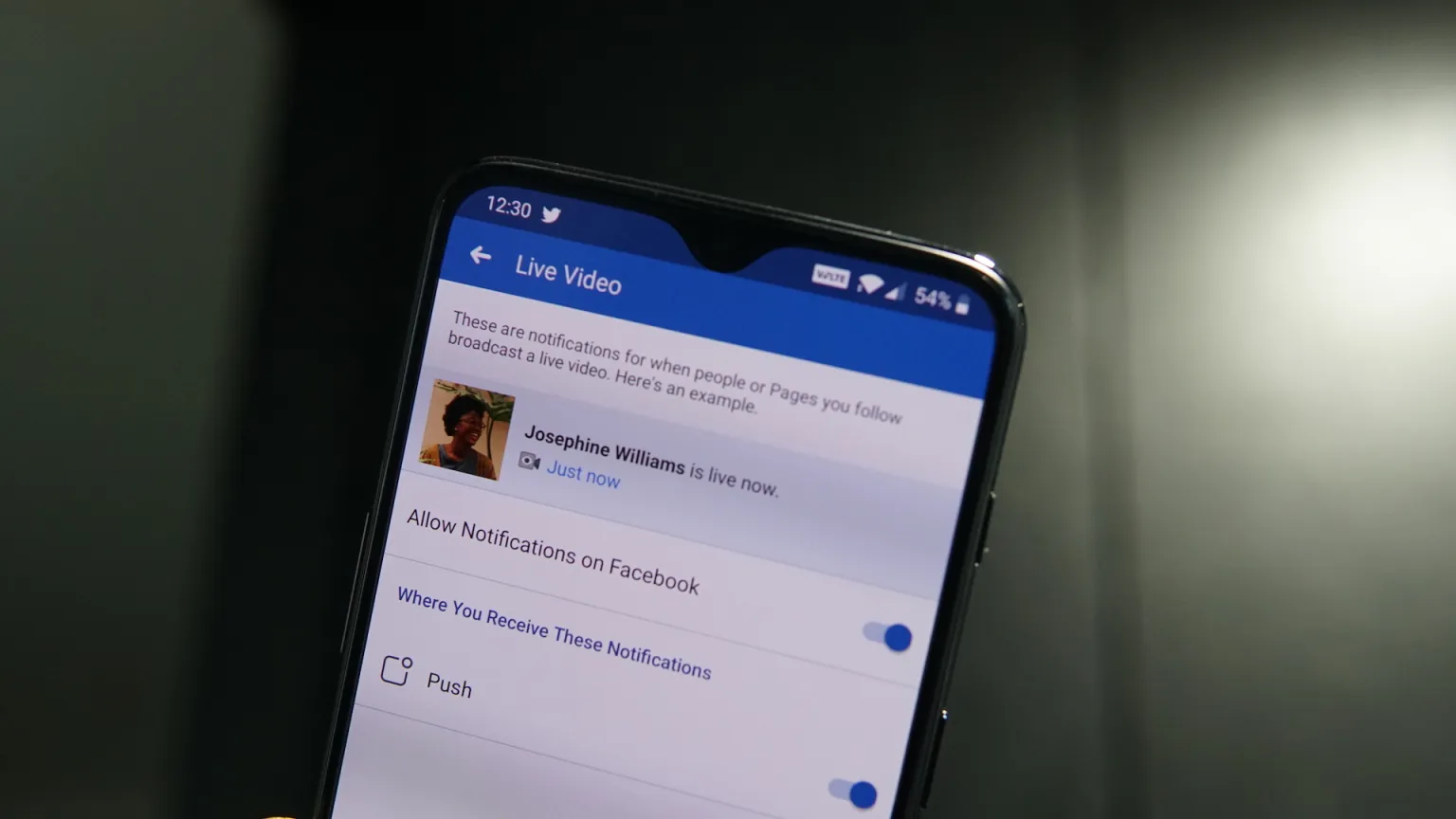
Facebook Live was introduced as a real-time broadcasting feature that allows users to stream events, updates, and personal moments directly to their friends and followers. While the feature is useful for those who enjoy live interactions, it can quickly become overwhelming for users who follow many active accounts.
If you follow bloggers, influencers, media personalities, or socially active friends, you may receive multiple alerts every day informing you that someone has started a live video. These notifications appear even if you are not tagged or directly involved in the broadcast. Over time, constant live alerts can clutter your notification panel and interrupt your focus.
If you are tired of seeing “Someone is live now” alerts repeatedly, the good news is that Facebook allows you to turn off these notifications entirely. This guide walks you through the exact steps to disable Facebook Live notifications and regain control of your alerts.
Why Facebook Live Notifications Can Be Annoying
Unlike standard posts where notifications appear only when you are tagged or mentioned, Facebook Live sends alerts whenever a friend or page you follow starts streaming.
This means:
- You may receive alerts several times per day.
- Notifications appear even if you are not interested in the content.
- Your phone or desktop keeps lighting up unnecessarily.
- Important alerts can get buried under live video notifications.
While Facebook’s intention is to encourage real-time engagement, not every user wants instant updates about live broadcasts.
Fortunately, the notification settings can be adjusted to suit your preferences.
Understanding Facebook’s Live Notification Settings
Facebook groups live video alerts under the broader Notifications settings menu. From there, you can manage how and when you receive alerts.
You can choose to:
- Receive all live video notifications.
- Receive suggested live videos only.
- Turn off live video notifications completely.
If you prefer a quieter experience, disabling them entirely is usually the best option.
How to Turn Off Facebook Live Notifications (Desktop Version)
If you are using Facebook on a computer browser, follow these steps carefully.
Step 1: Access Account Settings
- Log into your Facebook account.
- Click the downward-facing arrow in the top-right corner of the screen.
- Select Settings & Privacy.
- Click Settings.
Step 2: Open Notification Settings
- In the left-hand menu, click Notifications.
- You will now see a list of notification categories.
Step 3: Find Live Video Notifications
Scroll down through the list until you find Video or Live Videos, depending on your Facebook version.
Click on it to expand the settings.
Step 4: Disable Live Video Alerts
You will see notification options such as:
- Allow notifications on Facebook
- Allow email notifications
- Allow push notifications
Toggle the setting to Off or select All Off to completely disable live video alerts.
Once you save the changes, Facebook immediately stops sending live stream notifications from your friends and followed pages.
How to Turn Off Facebook Live Notifications on Mobile (iPhone and Android)
If you mainly use Facebook through the mobile app, the process is slightly different.
Step 1: Open the Facebook App
Launch the Facebook app on your device.
Step 2: Access the Menu
Tap the three horizontal lines (Menu icon).
On iPhone, it appears in the bottom-right corner.
On Android, it appears in the top-right corner.
Step 3: Navigate to Notification Settings
- Scroll down and tap Settings & Privacy.
- Tap Settings.
- Select Notifications.
Step 4: Locate Video Settings
Scroll down and tap Video or Live Videos.
Step 5: Adjust Notification Preferences
You can disable:
- Push notifications
- In-app notifications
- Email notifications
Toggle off the options to stop receiving alerts about live broadcasts.
Changes take effect immediately.
Can You Disable Live Notifications for Specific People?
If you want to stop notifications from certain individuals rather than everyone, you can adjust notification preferences per profile.
Visit the profile of the person who frequently goes live:
- Tap Following or Friends.
- Select Edit Notification Settings.
- Adjust the settings to reduce or disable alerts.
This allows you to customize notifications without affecting all live alerts globally.
Additional Ways to Reduce Facebook Notification Overload
If live notifications are not the only issue, you can further streamline your Facebook alerts by:
- Turning off birthday reminders.
- Disabling group activity notifications.
- Reducing notifications from pages you follow.
- Adjusting push notification frequency.
Reviewing the Notifications menu periodically helps maintain a cleaner, less distracting experience.
Why Managing Notifications Matters
Too many notifications can:
- Reduce productivity.
- Cause unnecessary distractions.
- Increase screen time.
- Lead to notification fatigue.
Customizing your notification preferences ensures you only receive alerts that genuinely matter to you.
Facebook Live is a powerful tool for real-time engagement, but not everyone needs constant updates. Taking control of your notification settings allows you to enjoy the platform without unnecessary interruptions.
RELATED ARTICLES:How to Set Up Facebook Marketplace: A Step-by-Step Guide
How to Deactivate Facebook Account: Step-by-Step Guide
How to Delete a Facebook Account Permanently or Temporarily complete Guide


