
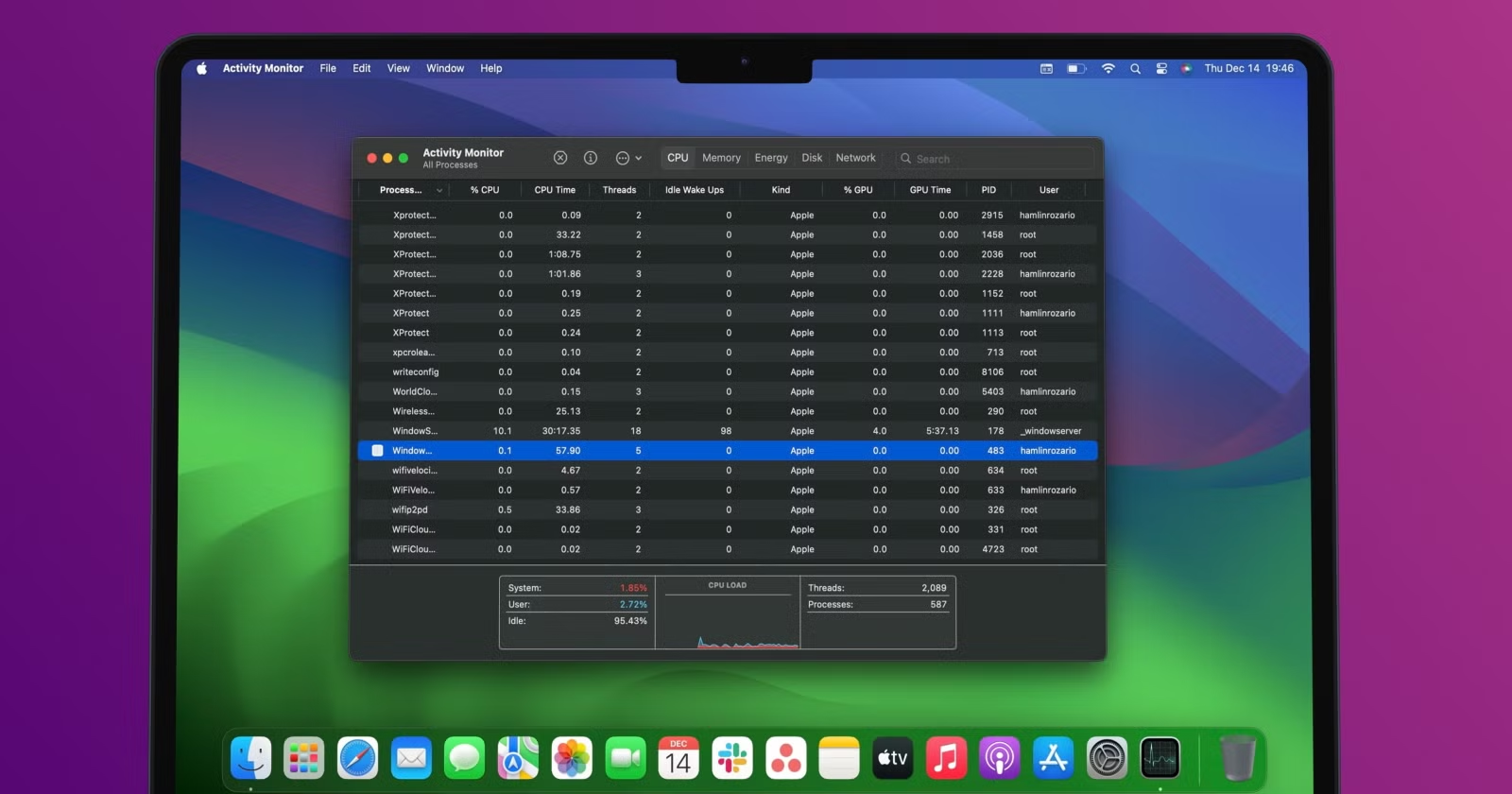
If you recently switched from Windows to macOS, one of the first things you might look for is the Task Manager. On Windows, Task Manager is the go-to tool for checking running applications, monitoring system performance, and force-closing unresponsive programs. On a Mac, the equivalent tool exists—but it goes by a different name: Activity Monitor.
Many new Mac users are unaware that Activity Monitor serves the same purpose as Windows Task Manager—and in many ways, it provides even more detailed system insights. Whether your Mac feels slow, an app is freezing, or you simply want to monitor system performance, Activity Monitor is the tool you need.
This comprehensive guide explains how to open Activity Monitor, understand what it displays, and use it to manage tasks efficiently on macOS.
Understanding Activity Monitor on macOS
Activity Monitor is a built-in macOS utility that displays real-time information about all processes running on your Mac. It shows everything from active applications to background services, system processes, kernel tasks, and user-level operations.
With Activity Monitor, you can:
• Monitor CPU usage
• Check memory consumption
• Track energy impact
• Analyze disk activity
• View network usage
• Force-quit problematic applications
• Diagnose performance issues
If something is slowing down your Mac, Activity Monitor can help you identify the cause quickly.
How to Open Activity Monitor on a Mac
There are several ways to launch Activity Monitor in macOS. Choose the method that feels most convenient for you.
Method 1: Using Spotlight Search (Fastest Method)
- Press Command + Spacebar to open Spotlight.
- Type Activity Monitor.
- Press Return when it appears in the search results.
This is the quickest and most efficient way to access Activity Monitor.
Method 2: Through Finder
- Open Finder.
- Click Applications in the sidebar.
- Open the Utilities folder.
- Double-click Activity Monitor.
Method 3: Using Launchpad
- Open Launchpad from the Dock.
- Navigate to the Other folder.
- Click Activity Monitor.
For easier access in the future, you can drag Activity Monitor to your Dock.
Understanding the Activity Monitor Interface
When Activity Monitor opens, you will see a list of processes currently running on your Mac. The window is divided into tabs that help you analyze different system components.
At the top, you’ll find the following tabs:
• CPU
• Memory
• Energy
• Disk
• Network
Each tab provides a focused view of system performance.
CPU Tab
The CPU tab shows how much processing power each application or process is using.
You’ll see columns such as:
• % CPU
• CPU Time
• Threads
• Idle Wake Ups
If your Mac feels slow, sort by % CPU to identify which process is consuming the most resources.
Memory Tab
The Memory tab displays how RAM is being used.
Important sections include:
• Memory Pressure graph
• App Memory
• Wired Memory
• Compressed Memory
If Memory Pressure is consistently high, your Mac may need more RAM or fewer apps running simultaneously.
Energy Tab
The Energy tab helps you identify applications that consume the most battery power, especially useful for MacBook users.
You can see:
• Energy Impact
• Average Energy Impact
• App Nap status
If your battery drains quickly, check this tab to see which apps are responsible.
Disk Tab
The Disk tab monitors read and write activity on your storage drive.
You can view:
• Bytes Written
• Bytes Read
• Reads in/sec
• Writes in/sec
This is useful if you suspect an app is heavily accessing your disk.
Network Tab
The Network tab tracks internet data usage.
You can see:
• Data Sent
• Data Received
• Packets Sent
• Packets Received
If your internet connection feels slow, this tab can reveal which apps are using bandwidth.
How to Sort and Search Processes
Activity Monitor allows you to sort processes by clicking on any column header. For example:
• Click % CPU to sort from highest to lowest CPU usage.
• Click Memory to sort by RAM usage.
There is also a search bar in the top-right corner. If you know the name of a process or app, type it in to filter results instantly.
How to Force Quit an App Using Activity Monitor
If an application becomes unresponsive and won’t close normally, Activity Monitor lets you terminate it.
Step-by-step instructions:
- Select the problematic app from the list.
- Click the Stop (X) button in the toolbar.
- Choose Quit to close normally.
- If the app does not respond, choose Force Quit.
Force Quit immediately stops the process. Use this option carefully, as unsaved data may be lost.
Viewing System-Level and Background Processes
Unlike Windows Task Manager, Activity Monitor shows:
• User applications
• System processes
• Background daemons
• Kernel tasks
To change which processes are visible:
- Click View in the top menu bar.
- Choose between:
• All Processes
• My Processes
• System Processes
• Other User Processes
This flexibility allows advanced users to diagnose deeper system issues.
Monitoring System Performance in Real Time
At the bottom of the Activity Monitor window, you will see live performance graphs that update in real time.
Depending on the tab selected, you’ll see:
• CPU usage breakdown (System vs User)
• Memory pressure graph
• Disk activity graph
• Network data flow
These visual graphs make it easier to understand how your Mac is performing under load.
When Should You Use Activity Monitor?
You may need Activity Monitor when:
• Your Mac is running slowly
• The fan is unusually loud
• An app freezes or crashes
• Battery drains quickly
• Internet usage spikes unexpectedly
• Storage activity is unusually high
Instead of guessing what the problem might be, Activity Monitor provides measurable data to help you make informed decisions.
Activity Monitor vs Windows Task Manager
For users transitioning from Windows, here is how they compare:
Windows Task Manager
• Accessed via Ctrl + Alt + Delete
• Focuses on apps and performance
• Includes startup management
Mac Activity Monitor
• Accessed via Spotlight or Utilities
• Provides deeper process-level visibility
• Includes energy and network analysis
While the names differ, the functionality is similar—and in some areas, Activity Monitor provides more detailed insights.
Tips for Better Mac Performance
• Close unused applications regularly.
• Monitor apps with high CPU or memory usage.
• Avoid installing unnecessary startup apps.
• Keep macOS updated.
• Restart your Mac occasionally to refresh system resources.
Using Activity Monitor regularly can help you maintain peak performance and avoid system slowdowns.
Mastering Activity Monitor gives you greater control over your Mac’s performance. Instead of feeling helpless when something goes wrong, you can identify the issue, isolate the cause, and take action immediately.


