Every device that connects to a network has a unique hardware identifier known as a Media Access Control address, commonly called a MAC address. This identifier plays a critical role in local network communication, whether you are using Ethernet or Wi-Fi. While IP addresses can change depending on your network, a MAC address is permanently assigned to a network interface card by the manufacturer.
Understanding how to find your MAC address is useful for troubleshooting network issues, setting up router filters, enabling parental controls, configuring DHCP reservations, or registering devices on secured networks. This guide explains what a MAC address is and provides detailed instructions on how to locate it on Windows, macOS, and Linux systems.
What Is a MAC Address?
A MAC address is a 12-character hexadecimal code assigned to a device’s network interface. It is embedded in the hardware and typically stored in read-only memory.
A standard MAC address looks like this:
00-1A-2B-3C-4D-5E
or
00:1A:2B:3C:4D:5E
The first six characters represent the manufacturer identifier, while the last six are unique to the device. This structure ensures global uniqueness across devices.
MAC addresses are widely used in IEEE 802 networking technologies, including Ethernet and Wi-Fi. Routers and switches rely on these identifiers to direct traffic within local networks.
Why You Might Need Your MAC Address
There are several practical situations where finding your MAC address becomes necessary:
- Setting up MAC filtering on a router
- Registering a device on a corporate or campus network
- Troubleshooting connectivity problems
- Assigning a static IP address via DHCP
- Enhancing network security
Since every operating system provides tools to view network details, locating your MAC address is straightforward once you know where to look.
How to Find MAC Address on Windows
If you are using a Windows computer, there are multiple methods to view your MAC address.
Method 1: Using Command Prompt
- Click the Start menu.
- Type cmd in the search bar.
- Press Enter to open Command Prompt.
- Type the following command and press Enter:
ipconfig /all
Scroll through the output and locate the section for your active network adapter. Look for “Physical Address.” That is your MAC address.
For example:
Physical Address. . . . . . . . . : 00-1A-2B-3C-4D-5E
You can also use:
getmac /v
This command displays MAC addresses for all network interfaces on your system.
After you finish, type exit to close the Command Prompt window.
Method 2: Using Network Settings
- Open Settings.
- Go to Network & Internet.
- Select Wi-Fi or Ethernet depending on your connection.
- Click on your active connection.
- Scroll down to find the Physical address (MAC).
This graphical method is useful for users who prefer not to use command-line tools.
How to Find MAC Address on macOS
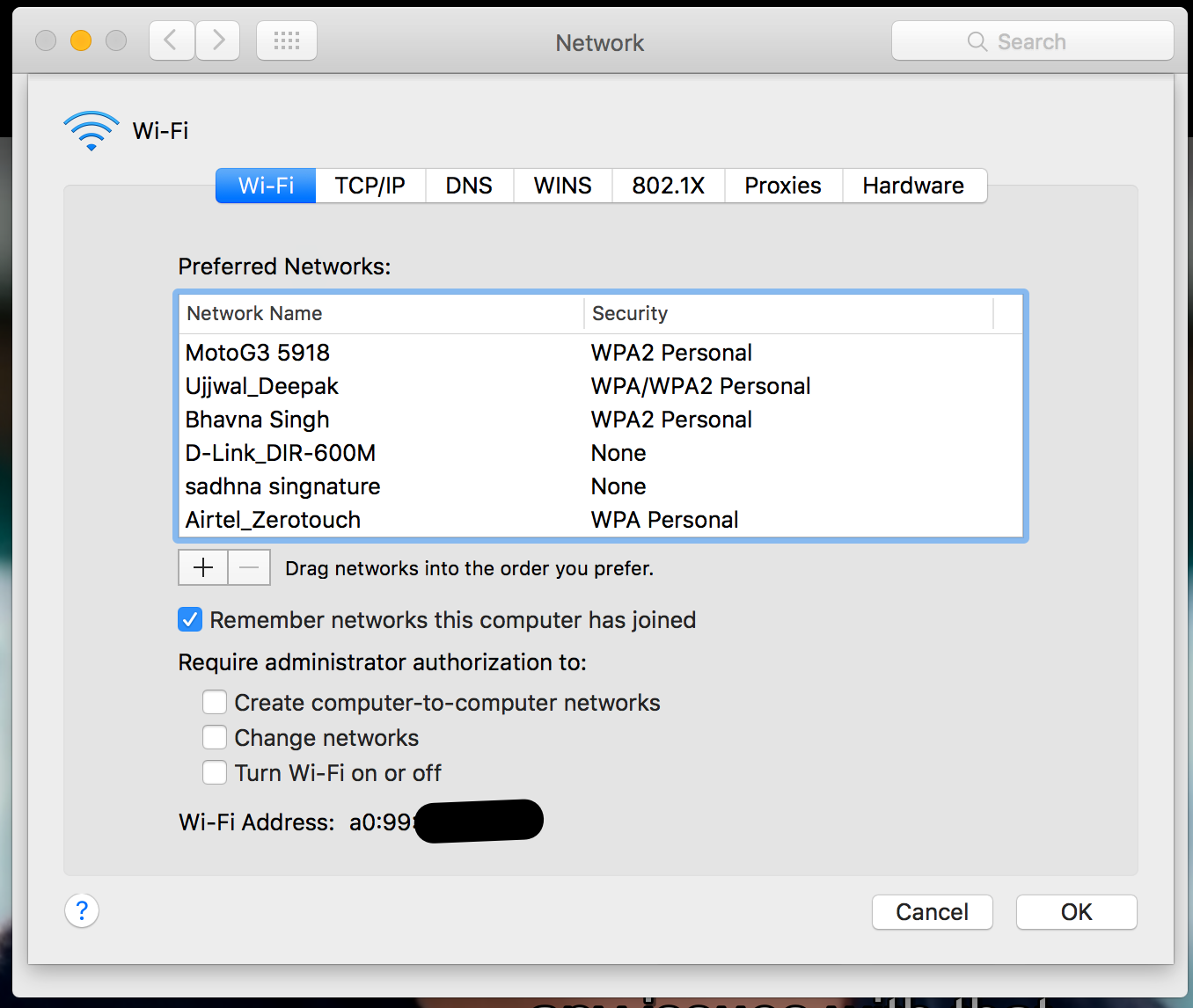
On Apple computers running macOS, including modern versions as well as older releases like Yosemite or El Capitan, you can locate the MAC address through System Settings.
Method 1: Using System Settings
- Click the Apple logo in the top-left corner.
- Select System Settings (or System Preferences on older versions).
- Click Network.
- Choose your active network connection (Wi-Fi or Ethernet).
- Click Details or Advanced.
In the Hardware or TCP/IP tab, you will see the MAC address listed as either “MAC Address” or “Wi-Fi Address.”
For Wi-Fi connections, it typically appears under the Wi-Fi section.
Method 2: Using Terminal
- Open Terminal from Applications > Utilities.
- Type the following command:
ifconfig
Look for the active interface, usually en0 for Wi-Fi or en1 for Ethernet. The MAC address appears next to the label ether.
Example:
ether 00:1a:2b:3c:4d:5e
How to Find MAC Address on Linux
Linux systems use command-line tools to display network information.
Method 1: Using ifconfig
- Open the Terminal.
- Type:
ifconfig
If the command is not installed, you may need to install net-tools.
To check a specific interface:
ifconfig eth0
For all interfaces:
ifconfig -a
Look for the line labeled ether or HWaddr. That value represents your MAC address.
Example:
ether 00:1a:2b:3c:4d:5e
Method 2: Using ip Command
Modern Linux distributions recommend using the ip command.
- Open Terminal.
- Type:
ip link
Locate your network interface in the output. The MAC address appears after the keyword link/ether.
Example:
link/ether 00:1a:2b:3c:4d:5e
This method works on most current Linux distributions, including Ubuntu, Fedora, and Debian.
Understanding Multiple MAC Addresses
Many computers have more than one network interface, such as:
- Ethernet port
- Wi-Fi adapter
- Bluetooth module
- Virtual network adapters
Each interface has its own MAC address. Make sure you select the one corresponding to the network connection you are using.
For example, if you are connected via Wi-Fi, use the wireless adapter’s MAC address instead of the Ethernet one.
Security Considerations
Although MAC addresses are unique identifiers, they can be spoofed in certain systems. Some operating systems even use randomized MAC addresses when scanning Wi-Fi networks for privacy protection.
If you are using MAC filtering on a router for security, remember that it provides only basic protection. Combining it with strong Wi-Fi encryption such as WPA3 is more effective.
Knowing how to locate your MAC address on Windows, macOS, and Linux systems gives you better control over your network configuration. Whether you are troubleshooting a connection problem or registering a device on a managed network, these steps allow you to quickly identify your hardware’s unique address.