
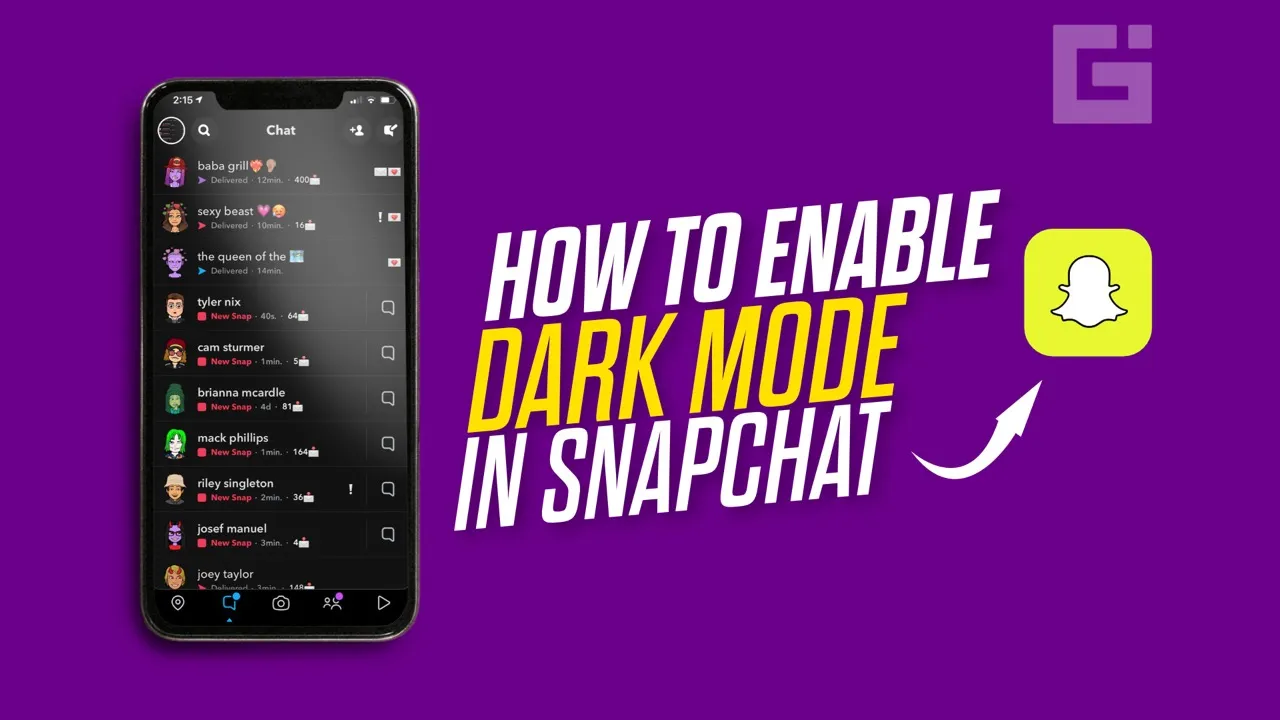
Spending hours on your phone can be exhausting, especially when bright white screens dominate your display late at night. Many users experience eye strain, headaches, or difficulty sleeping due to prolonged exposure to bright interfaces. That’s where Dark Mode becomes incredibly useful. If you regularly use Snapchat on your iPhone or iPad, enabling Dark Mode can make a noticeable difference in comfort.
Snapchat offers built-in appearance settings on iOS devices, allowing users to switch to a darker theme easily. In this guide, you’ll learn two reliable methods to enable Dark Mode on Snapchat using native app settings and iOS system features.
Why Use Dark Mode on Snapchat?
Before diving into the steps, it helps to understand why many users prefer Dark Mode:
- Reduces eye strain in low-light environments
- Minimizes screen glare at night
- Conserves battery life on OLED displays
- Creates a more comfortable browsing experience
- Matches the overall dark theme of your device
Snapchat is designed to be highly engaging, and it’s easy to lose track of time scrolling through stories or chatting with friends. Switching to a darker interface makes extended usage easier on your eyes.
Method 1: Enable Dark Mode Directly Inside Snapchat (Recommended)
The easiest and most effective way to activate Dark Mode is through Snapchat’s built-in appearance settings. This method works smoothly on devices running modern versions of iOS and iPadOS.
Step 1: Open Snapchat
Launch the Snapchat app on your iPhone or iPad.
Step 2: Access Your Profile
Tap your Bitmoji or profile icon in the top-left corner of the screen. This will take you to your Profile page.
Step 3: Open Settings
In your Profile screen, locate the gear icon (Settings) in the top-right corner. Tap it to enter Snapchat’s settings menu.
Step 4: Find “App Appearance”
Scroll down until you see the option labeled “App Appearance.” Tap on it.
Inside this section, you will see three options:
Match System
This option syncs Snapchat’s appearance with your device’s system-wide theme. If your iPhone is set to Dark Mode, Snapchat will automatically switch to Dark Mode as well.
Always Light
This keeps Snapchat in Light Mode at all times, regardless of system settings. This is usually the default option.
Always Dark
This forces Snapchat to remain in Dark Mode permanently.
To enable Dark Mode immediately, select Always Dark.
The interface will instantly change to a darker theme throughout the app, including chats, stories, and menus.
For most users, this method works without any issues and is the most reliable way to enable Dark Mode.
Method 2: Use iOS System Settings (If App Option Is Missing)
In some cases, users may not see the “App Appearance” option inside Snapchat. If that happens, you can use a system-level workaround through iOS Accessibility settings.
Step 1: Open Device Settings
Go to your iPhone or iPad’s Settings app.
Step 2: Tap Accessibility
Scroll down and tap on “Accessibility.”
Step 3: Select Display & Text Size
Under Accessibility, tap “Display & Text Size.”
Step 4: Enable Smart Invert
Find the “Smart Invert” option and toggle it on.
Smart Invert intelligently reverses interface colors while preserving images, videos, and media content. Unlike classic color inversion, Smart Invert avoids distorting photos or multimedia elements.
Once enabled, Snapchat will appear darker because the system modifies the color scheme.
How Smart Invert Works
Smart Invert detects dark UI elements and avoids inverting them unnecessarily. This makes it more refined than traditional inversion settings.
However, keep in mind:
- It affects the entire device, not just Snapchat.
- Some apps may look slightly different than intended.
- It is not identical to native Dark Mode.
While not as clean as Snapchat’s built-in setting, this method works when the in-app option is unavailable.
Alternative Option: Use System-Wide Dark Mode
Another simple approach is enabling Dark Mode system-wide on your device.
To do this:
- Open Settings.
- Tap Display & Brightness.
- Choose Dark under Appearance.
If Snapchat’s “Match System” option is enabled, the app will automatically switch to Dark Mode when your device is set to Dark.
This approach keeps your entire interface consistent across apps.
Which Method Should You Use?
For the best experience, use Snapchat’s built-in “Always Dark” option. It is optimized for the app’s interface and provides a clean, consistent look.
If that option is not visible, Smart Invert is a helpful backup method. However, once Snapchat fully supports your device version, the in-app setting remains the superior choice.
Tips for a Better Night Viewing Experience
To further reduce eye strain while using Snapchat at night:
- Lower your screen brightness manually.
- Enable Night Shift in iOS settings.
- Turn on True Tone if available.
- Avoid using your phone immediately before sleep.
These adjustments, combined with Dark Mode, significantly reduce visual fatigue.


