
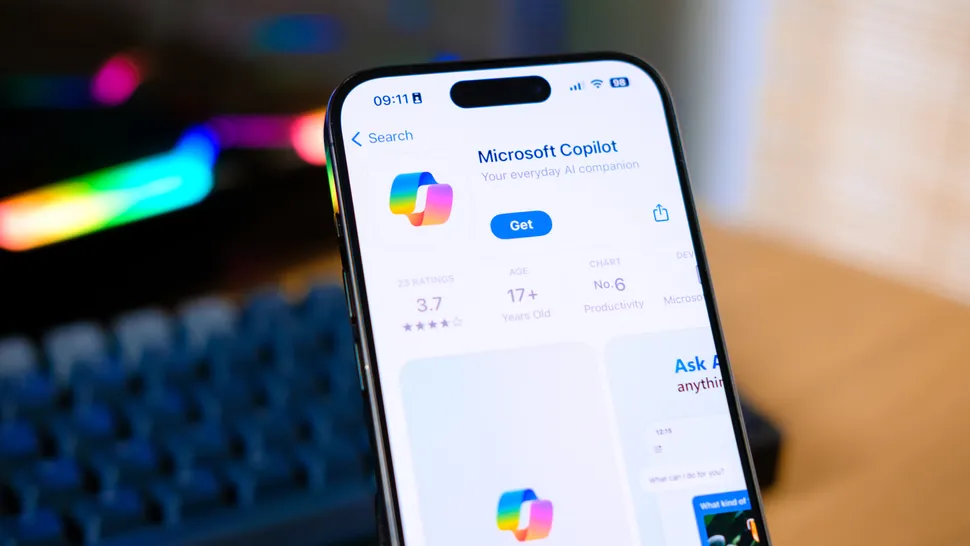
Artificial intelligence is no longer confined to desktop computers or experimental labs. With Microsoft Copilot available on iPhone, you can access advanced AI assistance directly from your pocket. Whether you want to draft documents, generate creative images, summarize web content, or streamline your Microsoft 365 workflow, Copilot turns your smartphone into a powerful productivity companion.
If you are new to Copilot or want to unlock its full potential on iOS, this guide explains everything in detail. From accessing the web version to using the dedicated app, activating Copilot Pro, and integrating it with Microsoft 365 apps, here is how to make the most of Microsoft Copilot on your iPhone.
Getting Started With Microsoft Copilot on iPhone
There are two main ways to use Microsoft Copilot on your iPhone:
- Through the web at copilot.microsoft.com
- Via the official Copilot app from the App Store
The dedicated app provides a smoother mobile experience, optimized for touch controls and quick access. However, the web version works perfectly in Safari or Chrome if you prefer not to install another app.
Step 1: Sign In With Your Microsoft Account
While Copilot can be accessed without signing in, logging in with your Microsoft account significantly improves the experience.
When signed in, you can:
- Save your conversation history
- Continue longer chat threads
- Access Copilot Pro features
- Sync across devices
- Retrieve previous responses
If you do not already have a Microsoft account, creating one takes only a few minutes. Once logged in, your Copilot sessions become more personalized and organized.
Using Copilot on iPhone for Everyday Tasks
Once you are inside the app or web interface, you will see a text input box at the bottom of the screen. This is where the magic begins.
Step 2: Enter a Prompt
Copilot works best when you use natural language. You do not need technical commands or special formatting.
For example, you can type:
- Write a professional email requesting a meeting
- Summarize the causes of climate change in simple terms
- Create a weekly workout plan for beginners
- Generate a social media caption for a product launch
- Explain blockchain in under 200 words
You can also tap the microphone icon and dictate your request instead of typing. Voice input is especially useful when you are multitasking or on the move.
Copilot can generate:
- Essays and reports
- Business letters
- Code snippets
- Creative stories
- Marketing copy
- Image prompts
- Travel itineraries
- Study guides
The more specific your request, the more refined the result.
Step 3: Continue the Conversation
One of Copilot’s strengths is context awareness. After receiving a response, you can ask follow-up questions without restating the entire prompt.
For instance:
If you asked for a business email, you could follow up with:
Make it more formal
Shorten it to under 150 words
Add a persuasive closing paragraph
Copilot remembers the context of your conversation and adjusts accordingly. This makes it feel less like a search engine and more like a collaborative assistant.
The app often suggests follow-up prompts you can tap to continue the discussion quickly.
Step 4: Refine and Export Responses
After Copilot generates a response, you can interact with it in several ways.
You can:
- Copy the text to your clipboard
- Share it via messaging apps
- Export it as a Word or PDF file
- Provide feedback with thumbs up or down
- Have it read aloud using text-to-speech
This flexibility makes it easy to move from idea generation to practical use.
Enhancing Copilot With Plug-Ins
Copilot supports conversation plug-ins that expand its capabilities.
To access them in the app, tap the menu icon and choose Plug-ins. On the web, look for the Plug-ins section in the interface.
Examples include:
- OpenTable for restaurant recommendations
- Creative tools for music generation
- Travel planning integrations
You can activate multiple plug-ins simultaneously, allowing Copilot to deliver more relevant, task-specific responses.
Using Specialized GPT Modes
Copilot includes specialized AI modes designed for specific tasks.
On iPhone, you can access these through the app’s menu.
Examples include:
Designer mode allows you to generate AI images by describing what you want. You might type:
Create a futuristic city skyline at sunset in watercolor style
Vacation planner helps build itineraries and travel suggestions tailored to your destination.
Cooking assistant can generate custom recipes based on dietary restrictions.
Fitness trainer can outline workout routines and health plans.
These modes simplify targeted tasks without requiring complex prompts.
Leveraging Notebook Mode for Longer Prompts
For more advanced tasks, Copilot includes a Notebook feature.
Notebook mode allows you to:
- Enter significantly longer prompts
- Edit instructions before submission
- Keep content organized in a structured format
This is particularly useful for:
- Drafting business proposals
- Planning detailed projects
- Writing long-form articles
- Developing structured research outlines
Notebook mode gives you more room to think and experiment without being limited by shorter character constraints.
Activating Microsoft Copilot Pro
If you want enhanced performance and additional capabilities, consider Copilot Pro.
To activate Copilot Pro on iPhone:
Open the app menu and select Try Copilot Pro
Or visit the Copilot homepage and choose the Pro option
Copilot Pro offers:
- Faster response times
- Priority access during peak hours
- Enhanced image generation
- Access to advanced AI models
- Improved creative output quality
This tier is ideal for professionals, students, and creators who rely heavily on AI assistance.
Integrating Copilot With Microsoft 365 Apps
A Copilot Pro subscription unlocks powerful integration with Microsoft 365 apps such as Word, Excel, PowerPoint, Outlook, and OneNote.
Using Copilot in Word on iPhone
Open Word and locate the Copilot icon in the toolbar.
You can ask Copilot to:
- Draft a document
- Rewrite selected text
- Summarize a report
- Improve clarity
- Adjust tone
For example:
Create a 500-word project proposal for a marketing campaign
Copilot will generate a structured draft directly inside your document.
Working With Existing Documents
Highlight text and tap the Copilot icon.
You can:
- Summarize selected sections
- Ask questions about the content
- Expand or simplify paragraphs
- Generate bullet-point summaries
This feature saves time when reviewing lengthy documents or preparing presentations.
Copilot in Excel
In Excel, Copilot can:
- Analyze data trends
- Create formulas
- Suggest charts
- Explain spreadsheet results
Instead of manually writing formulas, you can type:
Calculate total monthly sales and highlight highest revenue region
Copilot handles the complexity.
Copilot in PowerPoint
In PowerPoint, Copilot can:
- Create slide outlines
- Generate presentation text
- Suggest design improvements
- Summarize reports into slides
This dramatically reduces preparation time for meetings and lectures.
Copilot in Outlook
In Outlook, Copilot assists with:
- Drafting emails
- Summarizing long email threads
- Suggesting replies
- Adjusting tone for professionalism
This integration is particularly useful for busy professionals managing heavy inbox traffic.
Tips for Getting Better Results on iPhone
To maximize Copilot’s performance:
Be specific in your prompts
Provide context
Set word limits
Specify tone
Ask for structured formats such as bullet points or tables
Use follow-up questions to refine results
For example, instead of saying:
Write about marketing
Try:
Write a 300-word introduction to digital marketing trends in 2026 using a professional tone
The clearer your instructions, the more accurate the output.
Using Copilot for Creative Tasks
Beyond productivity, Copilot excels in creativity.
You can use it to:
- Generate short stories
- Brainstorm business ideas
- Write song lyrics
- Create marketing slogans
- Develop startup pitches
- Draft social media calendars
With Designer mode, you can even generate AI images from text descriptions directly on your iPhone.
This makes Copilot a powerful tool for content creators, students, and entrepreneurs alike.
Security and Privacy Considerations
When using Copilot on iPhone, ensure you:
- Sign in through official Microsoft channels
- Download only from the App Store
- Avoid sharing sensitive confidential data
- Keep your app updated
Microsoft accounts benefit from multi-factor authentication, which enhances overall security.
Microsoft Copilot on iPhone transforms your smartphone into a versatile AI-powered assistant capable of research, creativity, productivity, and automation. With web access, mobile app functionality, Pro enhancements, and Microsoft 365 integration, it offers a comprehensive AI experience designed for everyday users and professionals alike.


