
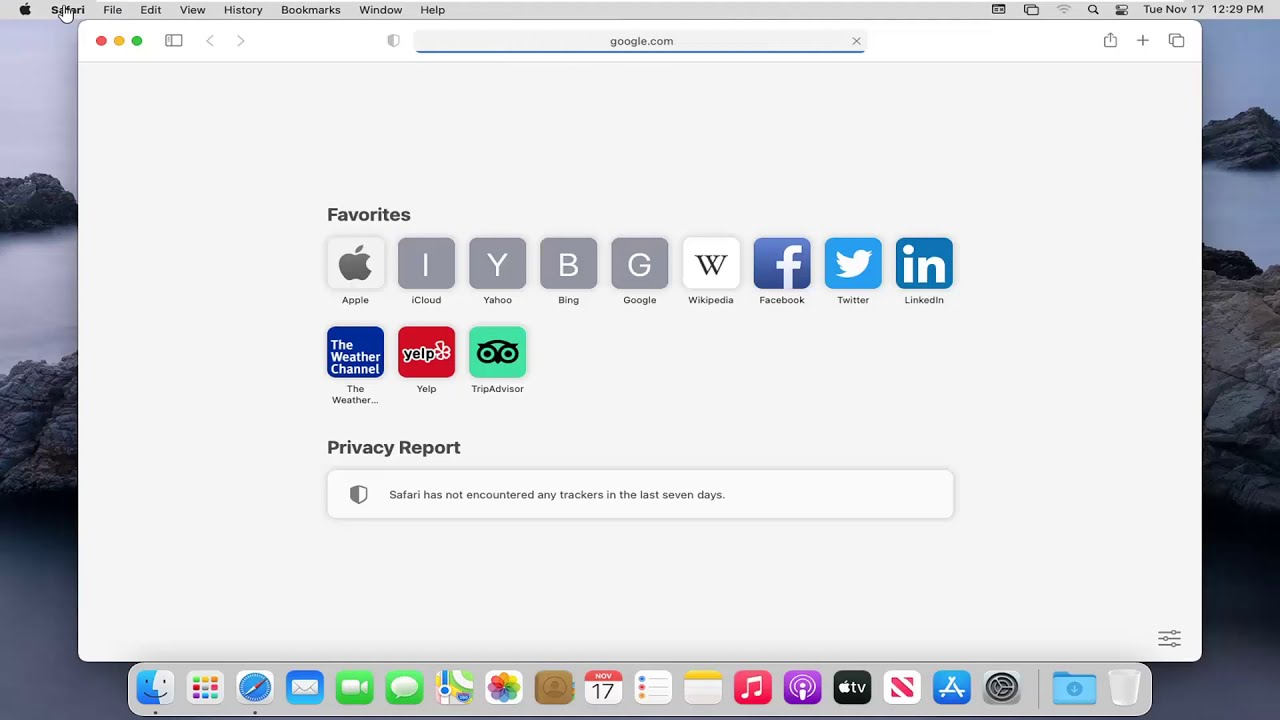
Safari is designed to load websites quickly and efficiently. One of the ways it achieves this speed is by storing temporary website files known as cache. While caching improves performance and reduces bandwidth usage, it can sometimes cause display problems, loading errors, or outdated content issues. Knowing how to clear cache and browsing history on Safari can help resolve these problems and keep your browser running smoothly.
This detailed guide explains what cache is, why it matters, and how to clear Safari cache on macOS and iOS devices step by step.
What Is Browser Cache in Safari?
When you visit a website for the first time, Safari downloads various elements such as HTML pages, CSS stylesheets, JavaScript files, images, and other static resources. Instead of downloading everything again on your next visit, Safari saves certain files locally on your device.
This stored data is called cache.
The purpose of cache is to:
- Reduce website loading time
- Lower bandwidth consumption
- Decrease server requests
- Improve overall browsing speed
When you revisit the same website, Safari loads stored files from your device rather than downloading them again. Only new or updated content is fetched from the server.
While this system is efficient, it does not always work perfectly.
Why You May Need to Clear Safari Cache
Although caching improves performance, it can sometimes cause unexpected issues.
Here are common reasons to clear cache and browsing data on Safari:
1. Website Display Issues
If a website looks broken, with misplaced images, distorted layouts, or missing design elements, corrupted cache files may be responsible.
Sometimes Safari loads outdated styling or script files stored in the cache, even if the website has already been updated.
2. Dynamic Content Not Updating
Certain websites rely heavily on dynamic content. If Safari continues loading cached data, you might not see recent updates immediately.
For example, profile picture changes on social media platforms may take longer to appear if cached versions are still being used.
3. Troubleshooting Internet Problems
Clearing cache is often one of the first troubleshooting steps recommended when experiencing browser-related problems.
Removing cached files forces Safari to download fresh data from the website server.
4. Freeing Up Storage Space
Over time, cached website data accumulates and consumes storage space. Periodically clearing this data helps maintain optimal performance.
Although Safari allows some automatic management of stored data, manually clearing cache occasionally is recommended for smoother browsing.
How to Clear Cache and Browsing History in Safari on macOS
The process depends on your Safari version. Modern versions of Safari simplify cache removal through the Clear History option.
For Newer Versions of Safari
- Open Safari.
- Click Safari in the top menu bar.
- Select Clear History and Website Data.
- Choose the time range you want to clear:
- The last hour
- Today
- Today and yesterday
- All history
- Click Clear History.
This action removes:
- Browsing history
- Cached files
- Cookies
- Website data
After clearing, quit Safari completely by clicking Safari > Quit Safari or pressing Command + Q. Closing the browser fully ensures all temporary files are properly cleared.
Reopen Safari afterward to continue browsing.
Clearing Cache Using the Develop Menu (Advanced Method)
If you only want to clear cache without deleting browsing history:
- Open Safari.
- Go to Safari > Settings (or Preferences).
- Click the Advanced tab.
- Enable Show Develop menu in menu bar.
- Close the settings window.
- Click Develop in the top menu.
- Select Empty Caches.
This method clears cached files while preserving browsing history.
For Safari 7 and Earlier Versions
If you are using an older Safari version:
- Open Safari.
- Click Safari in the menu bar.
- Select Reset Safari.
- Choose the items you want to remove.
- Click Reset.
- Quit Safari completely using Command + Q.
Restart Safari to ensure changes take effect.
How to Clear Safari Cache on iPhone and iPad (iOS)
Clearing cache on iOS devices is slightly different because Safari settings are located in the main Settings app.
Follow these steps:
- Open the Settings app on your iPhone or iPad.
- Scroll down and tap Safari.
- Scroll to the bottom and tap Advanced.
- Tap Website Data.
Here you can see how much storage website data is using on your device.
To remove all stored data:
- Scroll down and tap Remove All Website Data.
- Confirm your selection.
This deletes cached files, cookies, and stored website data.
After clearing the data, close Safari and reopen it to ensure the browser refreshes properly.
Clearing Safari Browsing History Only
If you prefer to remove browsing history but keep some stored website data:
On macOS:
- Open Safari.
- Click History in the menu bar.
- Select Clear History.
- Choose the time range and confirm.
On iPhone or iPad:
- Go to Settings > Safari.
- Tap Clear History and Website Data.
- Confirm the action.
Keep in mind that clearing history may also remove cookies and cached data depending on your selection.
When Should You Clear Safari Cache?
Clearing cache is not something you need to do daily. However, it is recommended in situations such as:
- A website appears broken or incorrectly formatted
- You cannot log into a site that usually works
- You are testing website changes
- Your browser feels slow
- You want to remove stored browsing data for privacy reasons
For most users, clearing cache once every few weeks or during troubleshooting is sufficient.
Difference Between Cache, Cookies, and History
It is important to understand what gets removed when clearing Safari data.
Cache stores static website files to speed up loading.
Cookies store login information and website preferences.
Browsing history records the websites you have visited.
When you select “Clear History and Website Data,” Safari typically removes all three categories.
If you only want to clear cache without affecting saved logins, use the Develop menu method on macOS.
Final Notes on Maintaining Safari Performance
Regular maintenance of your browser ensures better performance and fewer unexpected issues. While cache is designed to improve browsing speed, outdated or corrupted files can cause more harm than good.
By understanding how Safari stores website data and learning how to remove it properly, you can troubleshoot display errors, loading issues, and outdated content problems quickly and efficiently.


