
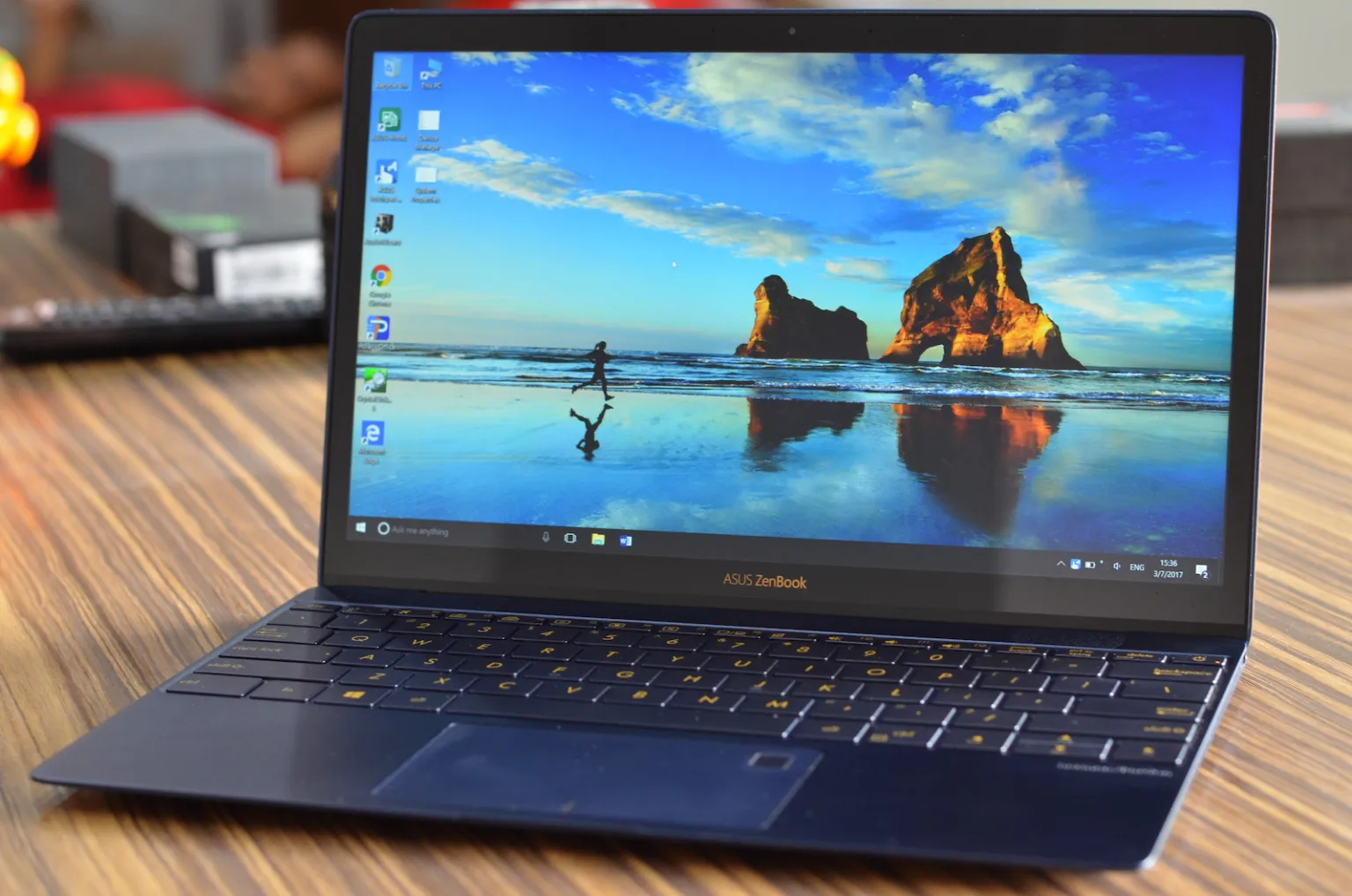
When Windows 10 was released, Microsoft redesigned the way users interact with system settings. Many familiar options from Windows 7 and Windows 8 were moved into the new Settings app, which initially caused confusion for users upgrading to the new system.
However, Windows 10 introduced powerful personalization features that allow you to completely transform the look and feel of your computer. From changing wallpapers and accent colors to customizing the lock screen, Start menu, themes, and taskbar, you can tailor your device exactly the way you prefer.
To access these features, open the Settings app and navigate to Settings > Personalization. This section contains the primary customization tools for visual adjustments.
Changing the Desktop Background
One of the first and most noticeable customizations is the desktop background.
Go to Settings > Personalization > Background. Under the Background dropdown menu, you can select Picture, Slideshow, or Solid Color.
If you choose Picture, Windows provides several default images. You can also click Browse to select your own photo. After selecting an image, you can decide how it appears on your screen by choosing layout options such as Fill, Fit, Stretch, Tile, Center, or Span. If you are using multiple monitors, the Span option extends a single image across all displays.
If you prefer multiple images rotating automatically, choose Slideshow from the dropdown. You must first place all your desired images into one folder. Then click Browse and select that folder. Windows will rotate through the images at your chosen time interval. You can enable shuffle and adjust how images fit the screen.
For a cleaner and more minimal appearance, select Solid Color. Choose from preset colors or click Custom color to create a specific shade using the color picker.
Changing Windows Accent Colors
Accent colors control the highlight color used throughout Windows, including menus and interface elements.
Navigate to Settings > Personalization > Colors. You can select an accent color from the preset options or choose Custom color for more precision. There is also an option to automatically pick an accent color from your background, which helps maintain a coordinated design.
Once you choose a color, you can decide where it appears. You can apply it to the Start menu, Taskbar, and Action Center, or to title bars of active windows. These grouped elements share the same accent color and cannot be customized individually.
You may also enable Transparency effects, which give the Start menu and taskbar a slightly transparent appearance without changing the accent color.
Windows 10 also offers Light, Dark, and Custom modes. Dark mode changes system apps and settings to a darker theme, which many users prefer for reduced eye strain.
Customizing the Lock Screen
The lock screen is what appears before you sign into your account. You can personalize it under Settings > Personalization > Lock screen.
By default, Windows uses Windows Spotlight, which rotates high-quality images from Microsoft’s servers.
If you prefer your own image, change the Background dropdown to Picture and browse for your selected photo.
You can also select Slideshow to rotate images. Click Add a folder and choose a folder containing your images. Advanced slideshow settings allow you to include camera roll photos, limit images to those that fit your screen, and manage timeout behavior.
Windows 10 allows you to display notifications on the lock screen. You can select up to seven apps to show brief status updates and one app to display detailed information. Simply click the plus icon and choose from supported apps such as Mail or Weather.
There is also an option to display the lock screen background on the sign-in screen for visual consistency.
Using Themes for Quick Personalization
Themes allow you to apply multiple visual changes at once.
Go to Settings > Personalization > Themes. A theme controls the desktop background, accent color, sound scheme, and mouse cursor style.
You can choose from pre-installed themes or download additional themes from the Microsoft Store. Applying a theme automatically updates all included settings.
If you customize background, colors, sounds, and cursors to your liking, return to the Themes page and click Save theme. This allows you to switch back to your preferred configuration later.
Customizing the Start Menu
The Start menu includes several useful customization options.
Navigate to Settings > Personalization > Start. Here you can choose whether to display most used apps, recently added apps, or suggestions. You can also enable full-screen mode or allow more tiles per column.
To resize the Start menu, drag its edges.
You can right-click any app and select Pin to Start for quick access. Tiles can be resized into different shapes, and Live Tiles can be turned on or off individually.
You can also drag one tile onto another to create folders, which is helpful for grouping related applications like productivity tools or media apps.
Adjusting Taskbar Settings
Taskbar settings are available under Settings > Personalization > Taskbar.
You can lock or unlock the taskbar to prevent accidental movement. The taskbar can also be set to automatically hide in desktop mode or tablet mode.
Enabling small taskbar buttons reduces icon size for a more compact look. You can also enable Peek to preview the desktop when hovering over the Show Desktop area.
The taskbar position can be changed to the top, bottom, left, or right side of the screen.
Additional options allow you to display notification badges on taskbar icons and choose whether PowerShell replaces Command Prompt in certain menus.
Windows 10 offers extensive personalization features that allow you to create a desktop environment that reflects your preferences and workflow. By adjusting backgrounds, colors, lock screen images, themes, Start menu layout, and taskbar settings, you can fully customize your Windows experience without installing third-party software.


