
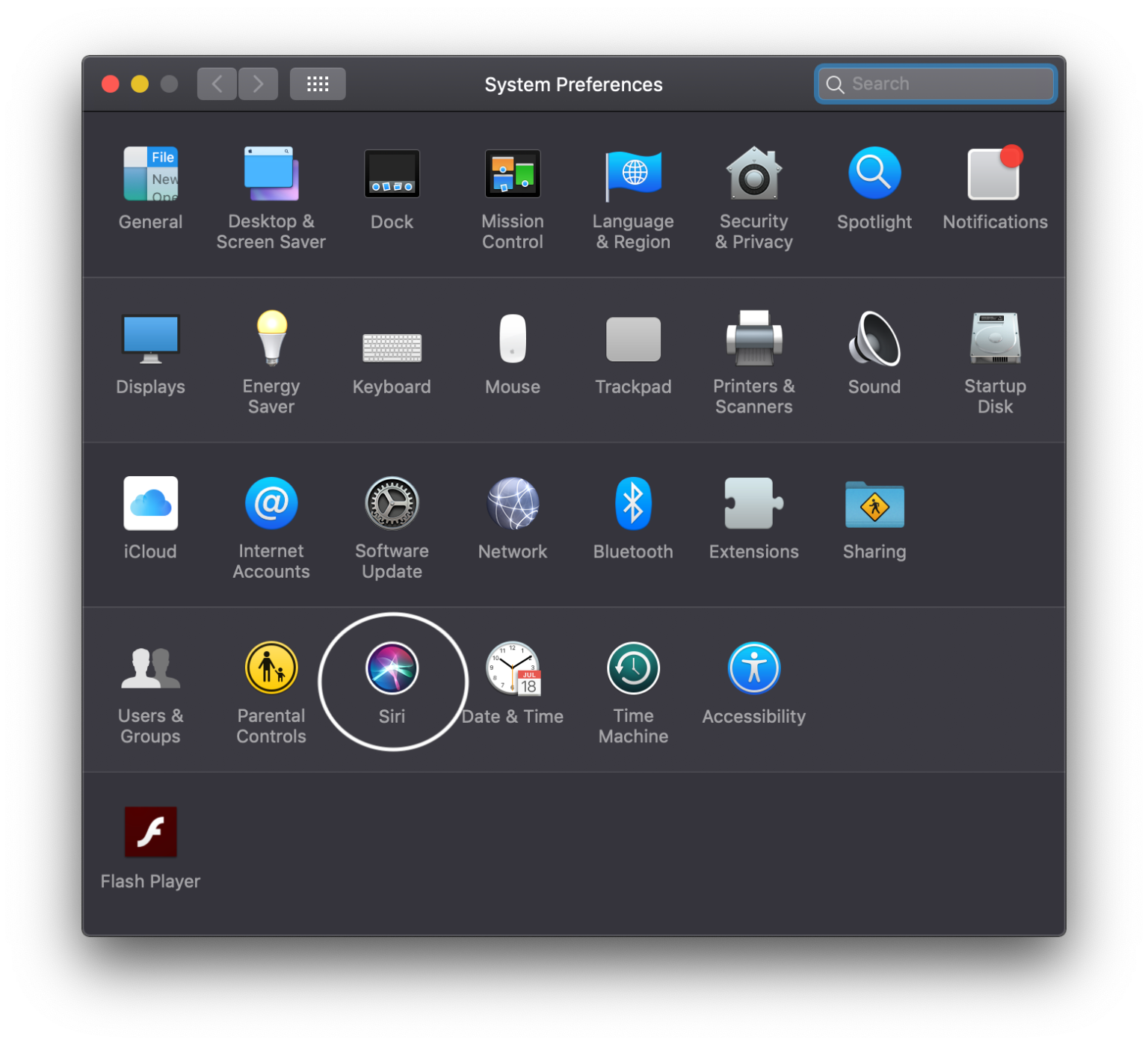
Siri is built into macOS as Apple’s voice assistant, designed to help you open apps, send messages, set reminders, search the web, and perform quick tasks using voice commands. While many users find it helpful, others prefer a quieter workspace without voice prompts or accidental activations.
Some Mac users disable Siri because they rarely use it. Others may find it distracting, especially in shared environments where children or coworkers trigger it unintentionally. In certain cases, users simply prefer using Siri on their iPhone or iPad instead of their Mac. Whatever the reason, macOS makes it easy to turn Siri off completely and just as easy to turn it back on whenever you choose.
Here is a detailed guide explaining how to disable Siri on your Mac, remove its visible shortcuts, and re-enable it if you decide to use it again.
Why You Might Want to Disable Siri on Mac
There are several reasons users decide to switch Siri off. Some prefer manual control through keyboard shortcuts rather than voice commands. Others may find Siri interruptions disruptive during focused work sessions. In households with children, repeated voice activations can become distracting.
Additionally, some users are concerned about privacy and prefer to limit voice assistant features. While Apple emphasizes user privacy, turning off Siri can provide peace of mind for those who prefer minimal background services.
When you disable Siri, macOS removes its icons from the menu bar, Dock, and Touch Bar if your Mac supports it. Siri also stops listening for activation commands and cannot be triggered until manually re-enabled.
How to Disable Siri on Mac
Disabling Siri only takes a few steps. The option is located within System Settings or System Preferences, depending on your macOS version.
First, click the Apple logo in the top-left corner of your screen.
From the dropdown menu, select System Settings if you are using a newer macOS version, or System Preferences if you are on an older version.
Next, locate and click on Siri from the list of available settings.
Inside the Siri settings panel, you will see an option labeled Enable Ask Siri.
Uncheck the box next to Enable Ask Siri.
After unchecking the option, close the settings window.
Siri is now disabled.
What Happens After You Turn Siri Off
Once disabled, Siri becomes completely inactive on your Mac. The Siri icon disappears from the menu bar. If you previously had Siri pinned to the Dock, it will be removed automatically. On MacBook models with a Touch Bar, the Siri button will also disappear.
Keyboard shortcuts assigned to activate Siri will no longer function. Voice commands directed at Siri will not respond. Siri suggestions and related services tied to the assistant are also turned off.
The assistant remains installed in the system, but it stays inactive until manually enabled again.
How to Re-Enable Siri on Mac
If you change your mind and want Siri back, reactivating it is just as simple.
Click the Apple logo in the top-left corner of your screen.
Select System Settings or System Preferences.
Open the Siri settings panel.
Check the box next to Enable Ask Siri.
Once enabled, the Siri icon will reappear in the menu bar. If your Mac supports the Touch Bar, the Siri shortcut returns automatically. You can also reassign keyboard shortcuts and adjust voice settings from the same panel.
After re-enabling Siri, it will function exactly as it did before. All voice commands and features become available again.
Customizing Siri Settings Before Re-Enabling
If you previously disabled Siri due to specific annoyances, consider adjusting its settings before fully reactivating it. Within the Siri settings panel, you can change the keyboard shortcut, modify voice feedback preferences, and disable certain suggestions.
You can also turn off “Listen for Hey Siri” if that feature caused accidental activations. By customizing these options, you may find a balance between convenience and control.
Managing Siri for Focus and Productivity
For professionals working from home or in shared spaces, minimizing distractions is essential. Voice assistants can sometimes interrupt calls, presentations, or quiet work sessions. Disabling Siri temporarily during important work periods can help maintain focus.
Later, when you need quick reminders or hands-free commands, you can enable Siri again. macOS gives you flexibility without permanently removing the assistant.
Privacy Considerations
Siri processes voice requests to provide accurate responses. While Apple states that privacy protection is a priority, some users feel more comfortable disabling voice assistants entirely. Turning Siri off ensures that it does not actively listen for commands or process voice interactions.
If privacy is your main concern, disabling Siri along with voice activation features may provide additional reassurance.
When It Makes Sense to Keep Siri Enabled
Despite reasons to disable it, Siri can be extremely useful. It allows hands-free control, quick searches, calendar management, and smart home integration. For users who frequently multitask, voice commands can save time.
If you previously disabled Siri due to accidental triggers, adjusting sensitivity settings rather than turning it off completely may offer a better long-term solution.
macOS gives users full control over how and when Siri operates. Whether you choose to disable it for a quieter workspace or re-enable it for productivity, the process remains simple and reversible at any time.


