Samsung Galaxy smartphones are incredibly versatile, but one feature that is not built into the device is a dedicated voicemail app. While Samsung doesn’t provide a default voicemail app, most major carriers, including AT&T, Verizon, and T-Mobile, offer their own visual voicemail apps, making it easy for you to manage and listen to voicemails. Additionally, if you’re using services like Google Fi or Google Voice, both offer voicemail features as well.
In this guide, we’ll walk you through how to check your voicemails using your carrier-specific voicemail app or services like Google Fi and Google Voice. We’ll also explain how to download these apps and use them effectively on your Samsung Galaxy device.
Why Use Carrier-Specific Voicemail Apps?
Carrier-specific voicemail apps provide several benefits for users, such as:
- Visual Voicemail: View and manage your voicemails in an easy-to-read list, along with the option to see transcripts (depending on your carrier).
- Convenience: Listen to your voicemails directly from the app without dialing into your voicemail box.
- Transcripts: Some carrier apps offer a transcription of your voicemail message, so you can read it instead of listening to it.
- Easy Access: No need to call your voicemail service manually; simply open the app and view your messages.
Step-by-Step Guide to Checking Voicemail Using Carrier-Specific Apps
Method 1: Using AT&T Visual Voicemail App
If you are an AT&T user, you likely have the AT&T Visual Voicemail app pre-installed on your Samsung Galaxy device.
Here’s how to use it:
Step 1: Find the AT&T Visual Voicemail App
- Open the app drawer on your Samsung Galaxy device.
- In the search box, type “voicemail“.
- If the app is installed, you should see the AT&T Visual Voicemail app on your screen.
Step 2: Open the App and Check Your Voicemails
- Tap to open the AT&T Visual Voicemail app.
- You’ll be directed to the voicemail tab, where you can see all your voicemail messages.
- Tap on any voicemail to hear it. If available, you’ll also see a transcript of the voicemail.
If you don’t have the app pre-installed, you can download it from the Google Play Store by searching for AT&T Visual Voicemail.
Method 2: Using Verizon Visual Voicemail App
For Verizon users, Visual Voicemail is also available to manage and listen to your voicemails with ease.
Step 1: Find the Verizon Visual Voicemail App
- Open the app drawer on your Samsung device.
- Search for “voicemail” in the search box.
- If the Verizon Visual Voicemail app is installed, it will appear in the search results.
Step 2: Open the App and Access Voicemails
- Launch the Verizon Visual Voicemail app.
- Once in the app, you’ll find all your voicemails listed.
- Tap on any voicemail to listen to it. If transcription is available, you’ll be able to read the voicemail as well.
If the app isn’t pre-installed, simply go to the Google Play Store and search for Verizon Visual Voicemail to download it.
Method 3: Using T-Mobile Visual Voicemail App
T-Mobile also offers a visual voicemail app to manage voicemails with convenience.
Step 1: Search for the T-Mobile Visual Voicemail App
- Go to your app drawer and search for “voicemail”.
- The T-Mobile Visual Voicemail app should appear if it’s installed on your phone.
Step 2: Open the App to Access Your Voicemails
- Open the T-Mobile Visual Voicemail app from your app drawer.
- Inside the app, you will see a list of all your voicemails.
- Tap on any voicemail to listen to it. Some voicemails will also have transcripts available.
If the app is not pre-installed, go to the Google Play Store, search for T-Mobile Visual Voicemail, and download it.
Method 4: Using Google Fi and Google Voice
If you are using Google Fi or Google Voice for your phone service, both services offer voicemail functionality, including visual voicemail and voicemail transcripts.
Step 1: Open the Google Fi or Google Voice App
- Open the Google Fi or Google Voice app on your Samsung device.
- Both apps should be available in the Google Play Store if they aren’t already installed.
Step 2: Go to the Voicemail Tab
- Once you open the app, navigate to the voicemail tab at the bottom of the screen.
- Here, you will see a list of all your voicemails, including the ones you’ve received recently.
Step 3: Listen to Your Voicemails or View Transcripts
- Tap on any voicemail to listen to it.
- If available, you’ll see a transcript of the voicemail.
Both Google Fi and Google Voice offer reliable voicemail services, and you can easily manage your messages without needing to dial in.
How to Set Up Voicemail if You Don’t Have an App
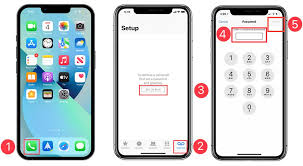
If you don’t have a voicemail app pre-installed, or if you need to set up voicemail manually, follow these steps to configure your voicemail on your Samsung Galaxy device:
- Open the Phone app.
- Tap the three vertical dots in the top-right corner and select Settings.
- Scroll down and select Voicemail.
- Tap Voicemail Settings and follow the prompts to set up your voicemail number and greeting.
If you have a voicemail app but don’t see voicemails after setting it up, you may need to contact your carrier to ensure that voicemail services are correctly activated.