Voicemail is a crucial feature on mobile phones, allowing users to receive and listen to messages when they’re unable to take calls. If you’re a Samsung Galaxy user, you can quickly check your voicemail using the Phone app on your device. The process is simple and can be done by long-pressing the “1” key on the dial pad. This method is supported by major carriers in the U.S., including Verizon, AT&T, T-Mobile, and Sprint.
In this comprehensive guide, we’ll walk you through the steps to check your voicemail using the Samsung Galaxy phone dialer, including how to set up your voicemail number if necessary.
How to Check Voicemail on Samsung Galaxy Using the Phone Dialer
If you need to listen to a voicemail, the Phone app on your Samsung Galaxy device makes it easy to access your messages. Follow these simple steps to quickly check your voicemail.
Step 1: Open the Phone App
Start by opening the Phone app on your Samsung Galaxy device. This app is typically found on your home screen or app drawer, and its icon resembles a telephone.
Step 2: Press and Hold the “1” Key
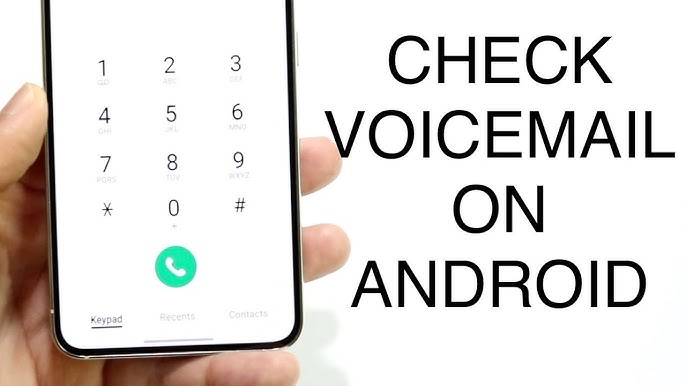
Once the Phone app is open, you’ll see the dial pad. To access your voicemail, press and hold the “1” key on the dial pad. This is a shortcut that directly calls your voicemail number. The system will dial your carrier’s voicemail number, and you’ll be connected to your voicemail inbox.
Step 3: Enter Your Voicemail Password or PIN (If Required)
After dialing your voicemail number, you may be prompted to enter your voicemail password or PIN. If you’ve never set up a password for your voicemail, your carrier may not require it, but for most users, a password or PIN is needed for security.
- If you’re unsure about your voicemail password or PIN, you can try default codes (which are typically the last four digits of your phone number) or contact your carrier for assistance.
Step 4: Follow the Prompts to Listen to Your Voicemails
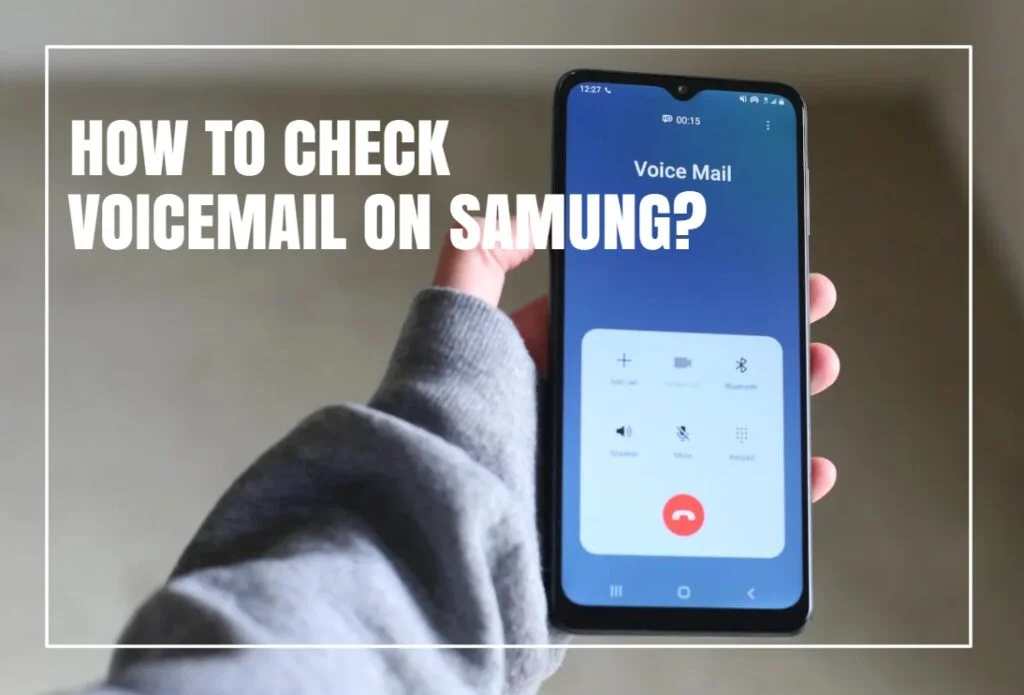
Once you’ve entered your voicemail password or PIN, you will hear a set of prompts from your voicemail system. These prompts will guide you through listening to your voicemail messages, saving, or deleting them. Follow the instructions provided by your carrier’s voicemail system.
You’ll typically have the option to:
- Listen to new messages
- Delete messages
- Save messages
- Change your voicemail greeting (if applicable)
If you have any voicemail messages, they will be played in the order they were received.
What If Holding the “1” Key Doesn’t Call Your Voicemail Number?
In some cases, holding the “1” key may not dial your voicemail number. This can happen if you haven’t set up your voicemail number yet, or if there’s an issue with your carrier settings. If this happens, you can manually set up your voicemail number by following these steps:
How to Set Up Your Voicemail Number on a Samsung Galaxy
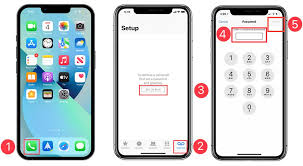
If pressing “1” doesn’t connect you to voicemail, you may need to manually configure your voicemail number. Here’s how to set it up:
Step 1: Open the Phone App
As with the previous steps, open the Phone app on your Samsung Galaxy device.
Step 2: Tap the Three Dots in the Top-Right Corner and Choose Settings
In the Phone app, tap the three vertical dots in the top-right corner of the screen to open the options menu.
From the menu, select Settings.
Step 3: Select Voicemail and Tap Voicemail Number
In the Settings menu, scroll down and tap on the Voicemail option. Then, select Voicemail number to access the voicemail number settings.
Step 4: Enter Your Voicemail Number and Click OK
In the Voicemail number field, enter your carrier’s voicemail number. If you’re unsure what your voicemail number is, you can contact your carrier to get the correct number. Once you’ve entered the number, tap OK to save the settings.
Now that your voicemail number is set up, holding the “1” key should dial your voicemail inbox and allow you to listen to your messages.
Troubleshooting Voicemail Issues
If you’re still having trouble accessing your voicemail or if the process doesn’t seem to work, here are some troubleshooting tips:
- Check Your Carrier’s Voicemail Setup: Ensure that your carrier supports voicemail and that it’s properly set up. Some carriers require special activation steps for voicemail.
- Make Sure Your Voicemail Number is Correct: Double-check the voicemail number in your settings to ensure it’s accurate.
- Test Your Connection: Make sure you have an active network connection (Wi-Fi or mobile data) when trying to access voicemail, as some carriers require a network connection to retrieve voicemail messages.
- Contact Your Carrier for Help: If you’re still unable to access voicemail, your carrier can provide support. They may need to reset your voicemail or assist with configuration.